Concepts
Understanding the “For you” page
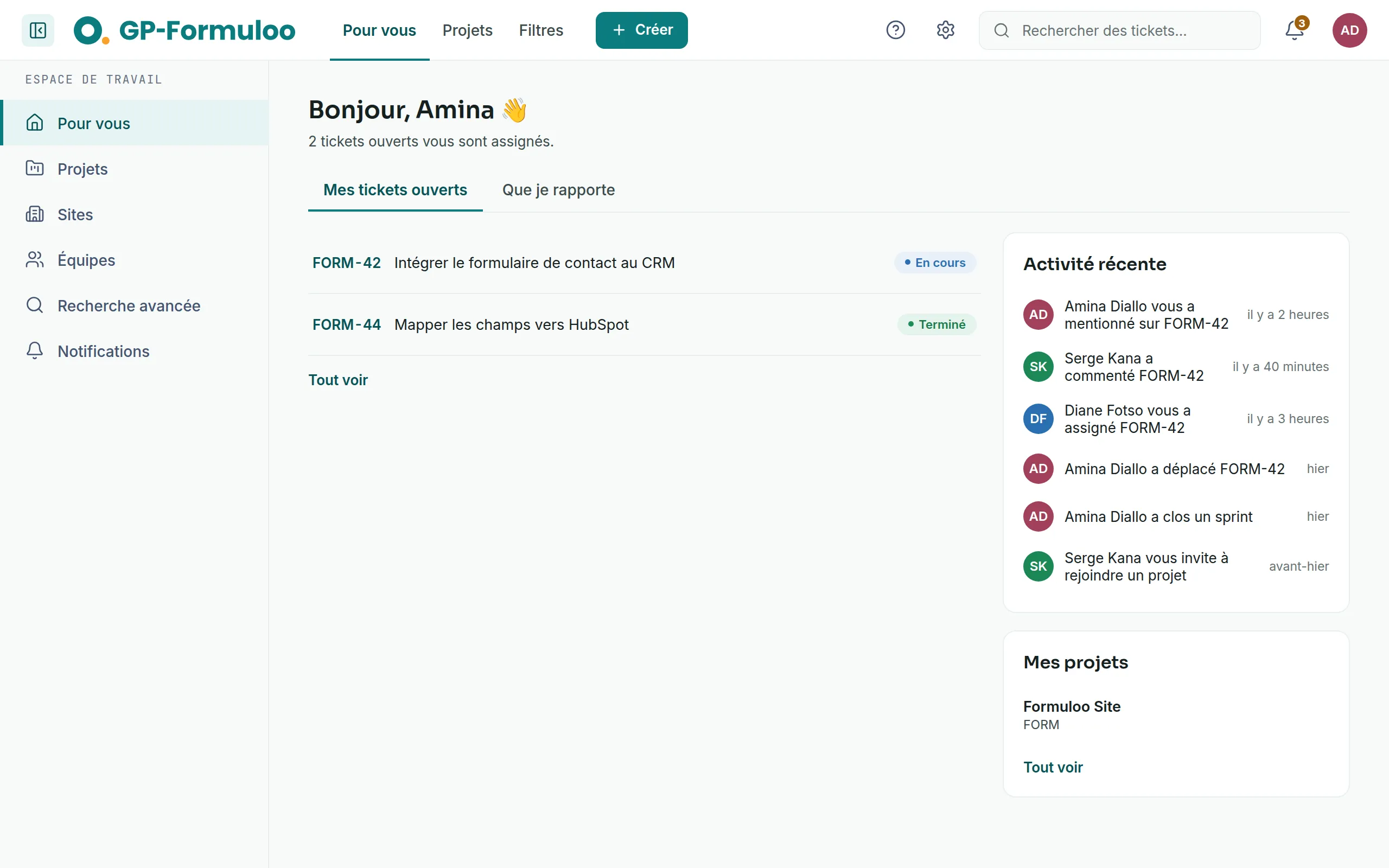
“For you” is your home page. It brings together what concerns you across all your projects: your tickets, what has just moved, and your projects.
It is the first page you see after signing in. The logo in the bar and the For you tab take you back to it at any time.
Your tickets
Link to the “Your tickets” sectionUnder the welcome message, a sentence counts your tickets, for example “2 open issues are assigned to you.” Two tabs list them:
- My open issues: the tickets assigned to you.
- Reported by me: the tickets you reported.
Each row shows the ticket key, its summary and its status, then its due date when it has one. Click the key or the summary to open the ticket.
View all opens the same list in advanced search, beyond these first rows. You can then filter it or save it.
Recent activity
Link to the “Recent activity” sectionThis column shows the last eight events that concern you, the same as your notifications. For example, someone mentions you, comments on one of your tickets, assigns a ticket to you or closes a sprint. Each row gives its author and when it happened, such as “40 minutes ago” or “yesterday”. The events are detailed in Events that trigger a notification.
My projects
Link to the “My projects” sectionThe list leads straight to each of your projects. Click a project to open its board. View all leads to the full list of projects.
On a phone
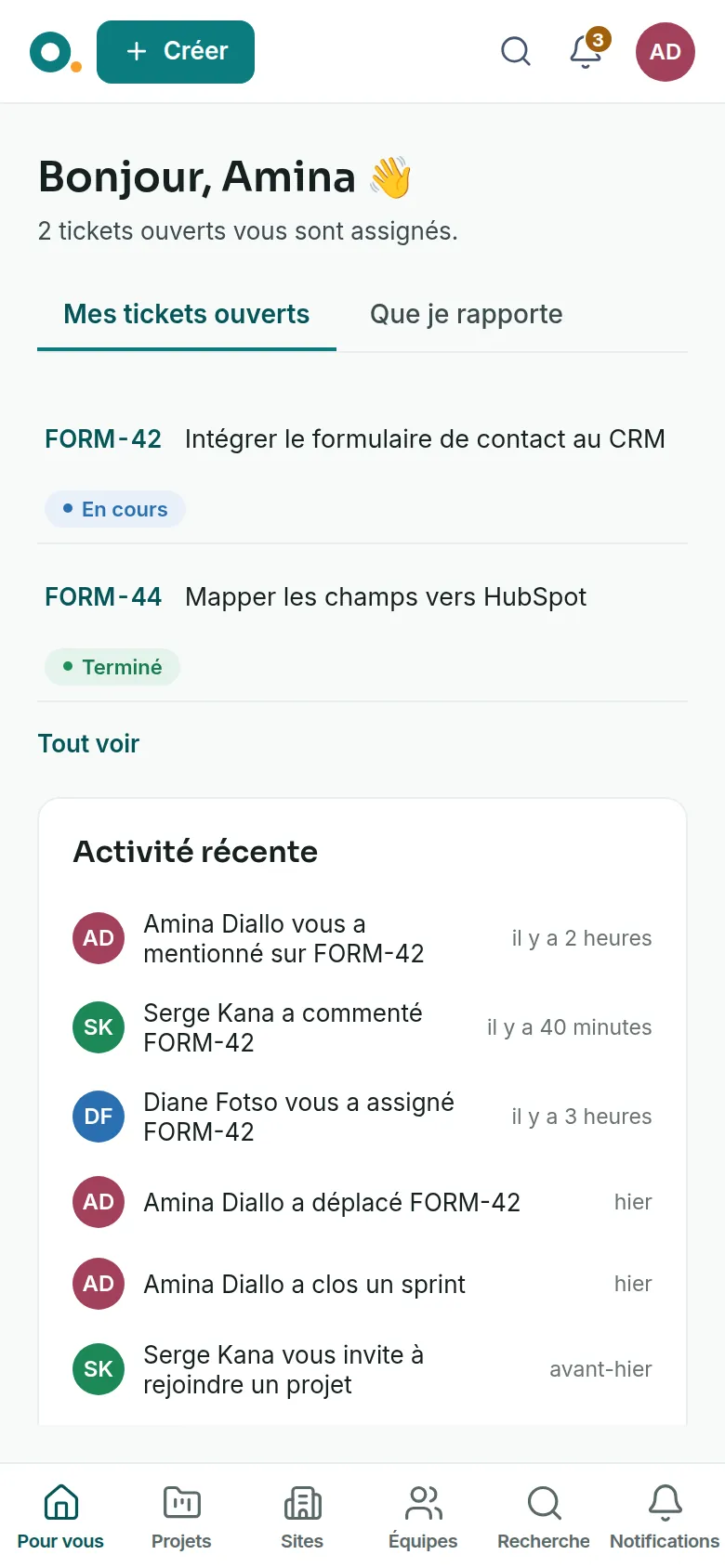
Link to the “On a phone” sectionThe three blocks are stacked: your tickets first, then recent activity, then your projects.
Good to know
Link to the “Good to know” section- When nothing is assigned to you, the tab says so: “No open issue is assigned to you.”
- You can also move between the tabs with the keyboard, using ← and →.
- The page only shows the projects you are a member of.