How-to
Turn off notification emails
You choose, event by event, whether a notification also reaches you by email. The setting applies to all your projects, and each project can override it.
Open your preferences
Link to the “Open your preferences” section- In the top bar, click your avatar, at the far right.
- In the menu, choose Notification preferences.
The page also opens from your profile, through the Notification preferences entry of the My account sidebar, and from any notification email, through the link Gérer mes notifications (Manage my notifications).
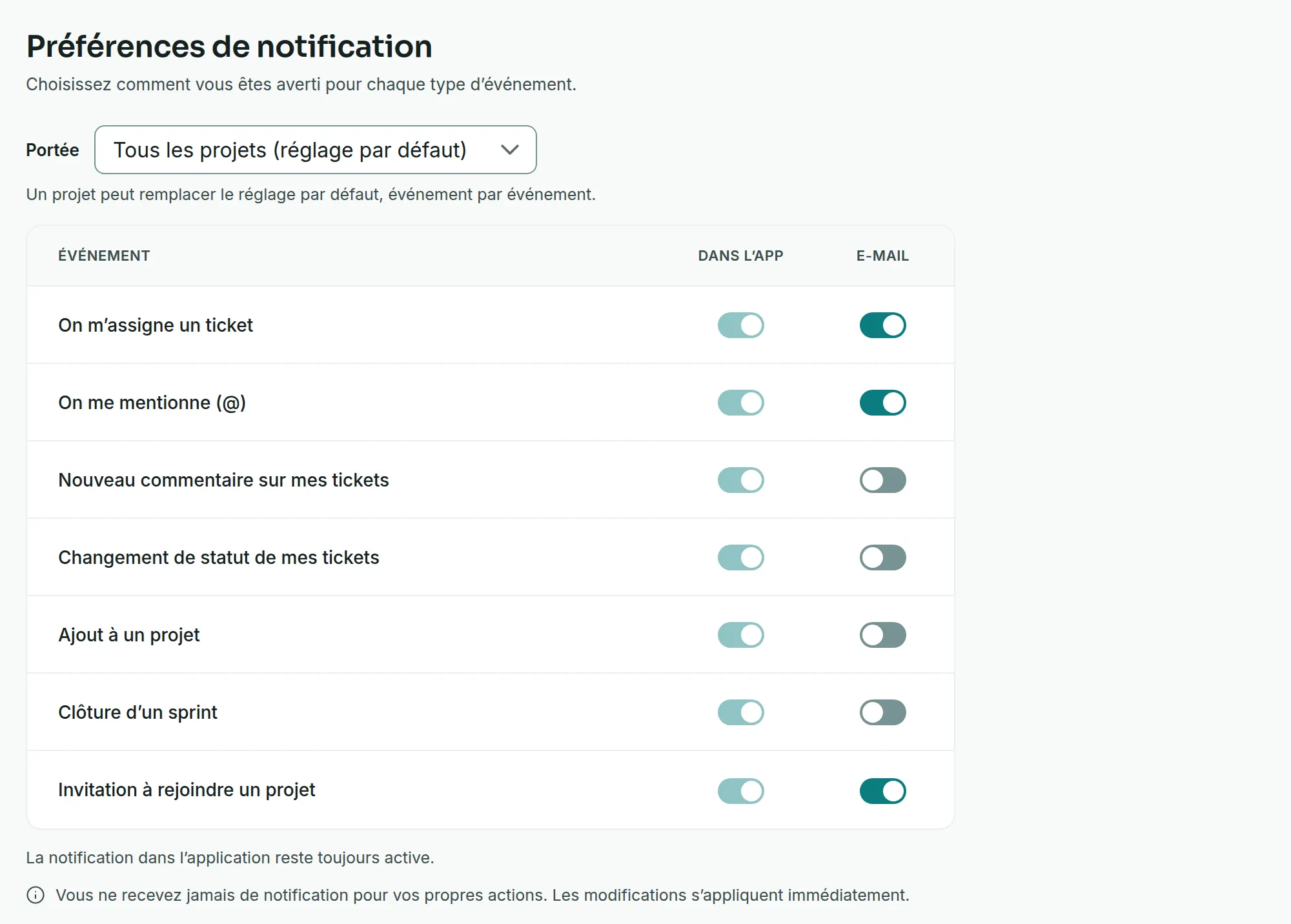
Turn off an email in all your projects
Link to the “Turn off an email in all your projects” section- Check that Scope shows All projects (default setting).
- On the event’s line, click the switch in the E-mail column. Its tooltip says “An e-mail goes out for this event. Click to turn it off.”
- Read the confirmation message “Setting applied. It holds for events from now on: an e-mail already due still goes out.”
To turn the email back on, click the same switch again. Each click applies straight away, with no save button.
Set a project differently
Link to the “Set a project differently” section- In Scope, choose the project. The list shows each project by its name and key, for example Formuloo Site (FORM).
- On the event’s line, click the switch in the E-mail column. Under the switch, Follows the default setting becomes Specific to this project.
- To bring this project back in line with your general settings, click Use the default setting, under the switch. The message “This project follows the default setting again for this event.” confirms it.
A setting specific to a project takes precedence over the general setting, for that event and in that project only.
If you get stuck
Link to the “If you get stuck” section| What you see | What to do |
|---|---|
| The switch in the In-app column does not move, and its tooltip says “In-app notifications are always on.” | This is intended. Only the email can be turned off. |
| An email arrives just after you turned it off. | It was already due before your setting, and goes out anyway. The following events will not send any more. |
| You still receive an account activation or password reset email. | These are not notifications. They are always sent, and cannot be set here. |
| A project keeps emailing you although you turned the email off for all projects. | That project has its own setting. Choose it in Scope, then click Use the default setting. |
| “The service is temporarily unavailable. Try again in a moment.” | The setting did not go through. Wait a moment, then click the switch again. |
Good to know
Link to the “Good to know” section- The page reminds you under the table: “You are never notified about your own actions. Changes apply immediately.”
- A setting does not catch up with the past. Turning an email back on does not send those for events that happened while it was off.
- What each event triggers, and for whom, is detailed in Events that trigger a notification.
Loading search…