How-to
Move a card on the board
Move a ticket from one status to another by moving its card, with the mouse, the keyboard or its menu. The initials badge changes the assignee without opening the ticket.
Drag the card
Link to the “Drag the card” section- In your project, open Board in the sidebar.
- Grab the card and drag it to the column of the status you want. A gap opens where the card will land.
- Drop the card in the place you want. The ticket takes the column’s status.
To change only the order, drag the card up or down its column.
Move the card with the keyboard
Link to the “Move the card with the keyboard” section- On the board, press Tab until you reach the card. A tooltip reads Arrows: move the card · Enter: open it.
- Press ← or → to move the card to the next column.
- Press ↑ or ↓ to move it up or down its column.
- Press Enter to open the ticket in a panel, to the right of the board.
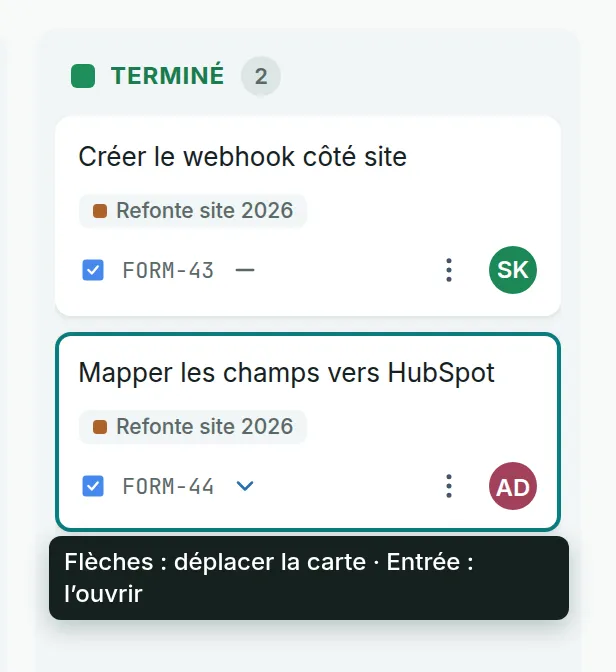
After each move, a message gives the card’s new column and its position. The card keeps the focus, and you can press the arrows again.
Use the card’s menu
Link to the “Use the card’s menu” section- On the card, click the ⋮ button. Its tooltip reads Actions on card, followed by the ticket key.
- Choose Move to followed by the name of a column. The card goes to the top of that column.
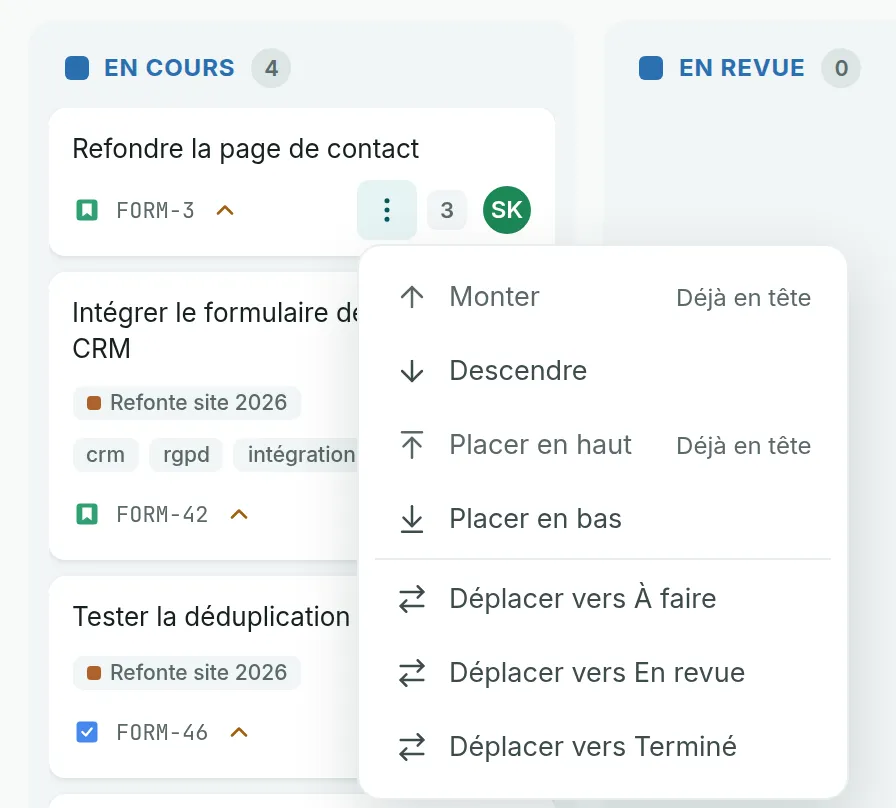
The same menu reorders the card in its column: Move up, Move down, Move to top and Move to bottom. An entry with nothing to do stays greyed out and says why, for example Already first.
Change the assignee
Link to the “Change the assignee” section- On the card, click the initials badge, at the bottom right.
- In the list, click a person, or Unassigned. Type a few letters to shorten the list.
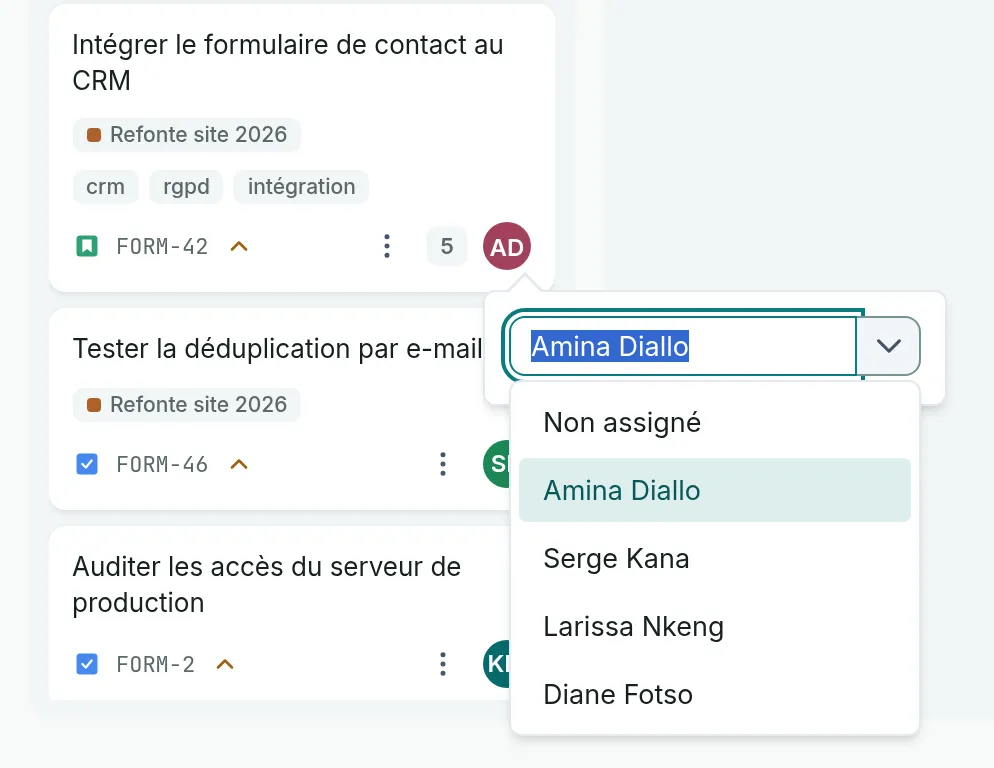
The card shows the new badge straight away. The list offers the project’s members.
If you get stuck
Link to the “If you get stuck” section| What you see | What to do |
|---|---|
| “Ticket FORM-42 was not moved.” followed by “Someone else moved this ticket in the meantime. The board has just been read again, so try the move once more.” | A colleague changed the ticket during your move. The card went back to its place and the board is up to date. Move the card again. |
| “Ticket FORM-42 was not moved.” followed by “You do not have the rights required for this action.” | Your role no longer lets you change this project. Ask a project Admin for the Member role. |
| “Ticket FORM-42 cannot move here: no place exists between its neighbours.” | Put the card somewhere else in the column, for example with Move to top or Move to bottom. |
| The card does not move and has no ⋮ button. | You are a Viewer in this project, or the project is archived. |
| A ticket has no card on the board. | Epics never have a card. Otherwise, the ticket is not in the running sprint, or a filter is set. Click All tickets. |
After a move refused with the keyboard or the menu, the message also offers Retry.
Good to know
Link to the “Good to know” section- The workflow is open. A card can go from any status to any other status of the project.
- The order of the cards in a column is the backlog order. Moving a card up on the board also moves it up in the backlog, and the other way round.
- A card dropped in a column of the Done category counts the ticket as done, for the sprint, the burndown and velocity. Taking it out reopens the ticket.
- Each status change is recorded in the ticket’s history.
- A sub-task has its own card, in the column of its own status, not its parent’s.
- When the board is grouped into swimlanes, a card changes column within its swimlane.
- When the window is 760 px wide or less, the columns scroll side by side and a long press grabs a card. In your profile, the Small screen display section also offers Move a card from its menu only.
Loading search…