How-to
Read a ticket’s history
A ticket’s history lists each of its changes: who made it, when, and what changed. You read it in the ticket, and nobody can edit it.
Open the history
Link to the “Open the history” section- Open the ticket, from the board, the backlog, the issue list or a search.
- Scroll down below the Links section.
- Click the History tab, next to Comments. With the keyboard, ← and → move from one tab to the other.
Entries are listed from the most recent to the oldest.
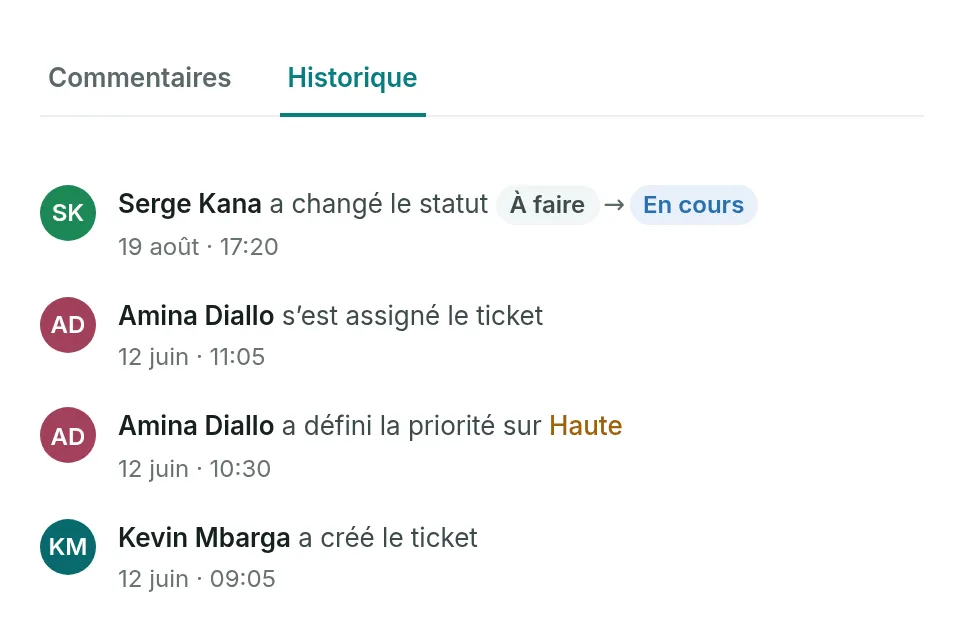
Read an entry
Link to the “Read an entry” section- The name at the start of the line is the person who made the change.
- Read the sentence that follows. For a status or a priority, the old and new values sit side by side, separated by an arrow.
- Read the time, below the sentence: “Today”, “Yesterday” or the date, followed by the time of day. Hover over it, or give it focus, to see the exact date and time.
| What the sentence says | What changed |
|---|---|
| created the ticket | The ticket’s creation. |
| changed the status, set the status to | The status. |
| changed the priority, set the priority to | The priority. |
| edited the summary, edited the description | The summary or the description. |
| assigned the ticket to …, assigned the ticket to themselves, removed the assignee | The assignee. |
| changed the ticket type to … | The type. |
| set the estimate to …, removed the estimate | The points. |
| set the due date to …, removed the due date | The due date. |
| changed the labels | The labels. |
| attached the ticket to a parent, detached the ticket from its parent | The parent. |
| added the ticket to a sprint, removed the ticket from the sprint | The sprint. |
| moved the ticket in the backlog | Its place in the backlog. |
| edited the … field | Another field, named by its technical name, such as the team or the Jira import. |
Go further back
Link to the “Go further back” section- At the bottom of the list, click Show older entries. The next entries are added, twenty at a time.
The button disappears when there is nothing left to show.
If you get stuck
Link to the “If you get stuck” section| What you see | What to do |
|---|---|
| “No activity on this ticket” | No change is recorded for this ticket. |
| “This ticket’s history could not be loaded.” | Click Retry. |
| “Unknown account” instead of a name | The account that made this change is no longer known to the product. The entry stays. |
| “a deleted status” instead of a status | That status has since been removed from the project’s workflow. |
Good to know
Link to the “Good to know” section- Nobody can edit or delete a history entry, not even an Admin.
- The history does not record comments, attachments or links. Each has its own section in the ticket.
- An action taken by an automation rule, such as Close on subtasks, carries the name of the person whose action triggered the rule. Nothing else sets it apart.
- Times are shown in your browser’s time zone.
Loading search…