How-to
Use advanced search
Advanced search combines text, projects, types, priorities, labels and dates to find tickets across all your projects. The results can be sorted, and the page address can be shared.
Open advanced search
Link to the “Open advanced search” section- In the top bar, click the Filters tab. You can also click Advanced search in the workspace sidebar, or Advanced search → under the results of the search bar.
- The screen opens under the title Advanced search. It becomes Search results as soon as the first criterion is set.
On a phone, advanced search opens from Search, in the bottom bar.
Set criteria
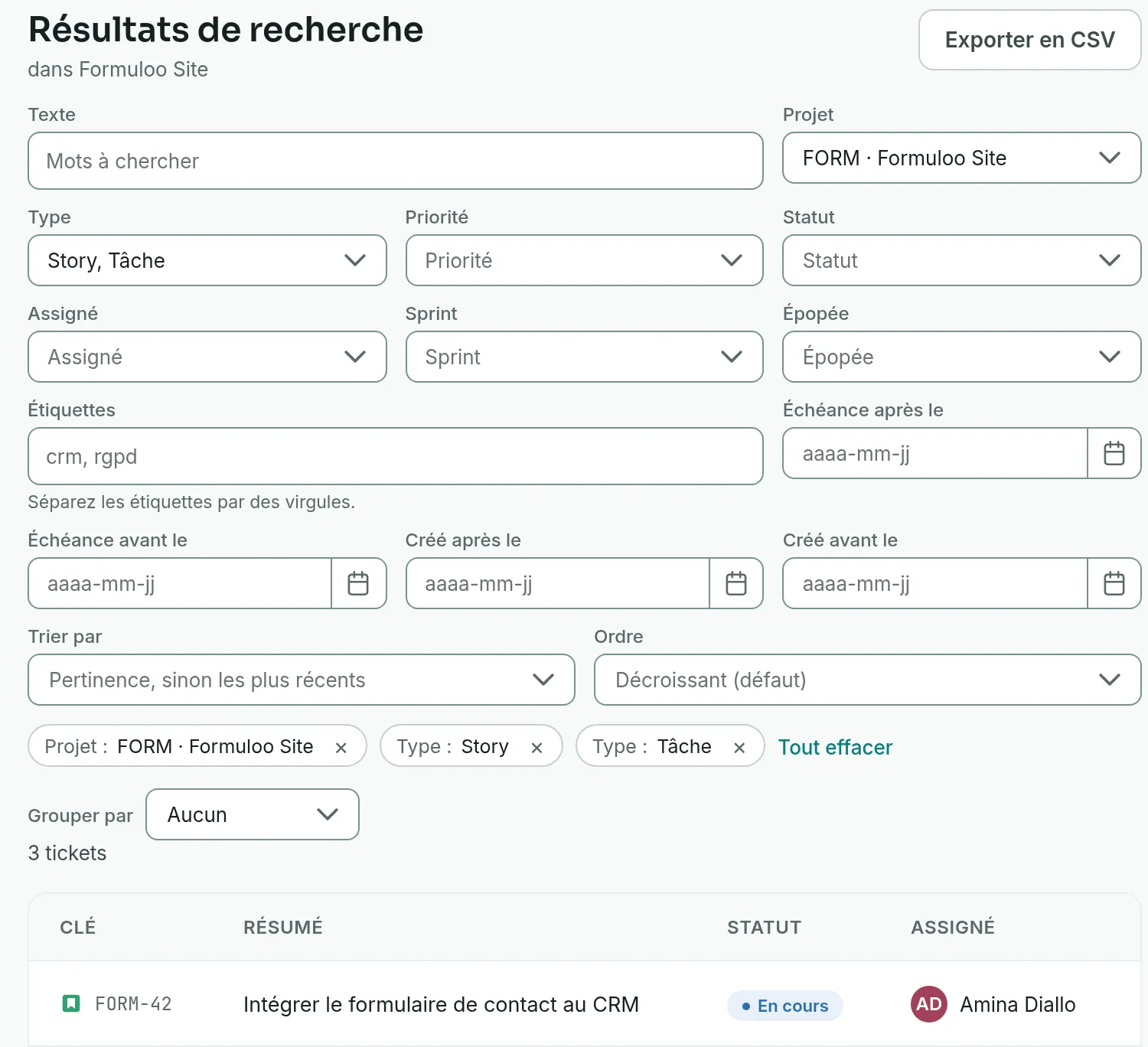
Link to the “Set criteria” section- In Text, type some words, then press Enter. The text is searched in the key, summary, description and comments.
- In Project, tick one or more projects.
- In Type and Priority, tick the values you want.
- To search by Status, Assignee, Sprint or Epic, choose a single project. These four lists only appear on that condition.
- In Labels, type one or more labels separated by commas, then leave the field.
- To set date limits, fill in Due on or after, Due on or before, Created on or after or Created on or before, in yyyy-mm-dd format, or pick the day in the calendar.
Each ticked value and each label appears under the form as a chip, with a cross to remove them one by one. Next to them, Clear all removes every criterion, text and dates included. The list updates with each change.
A ticket must meet every criterion set. Several values of the same criterion add up. Ticking Bug and Task finds both types.
Sort and browse the results
Link to the “Sort and browse the results” section- In Sort by, choose Updated, Created, Due date, Priority or Key. Without a choice, the sort stays on Relevance, otherwise newest first, which puts the most relevant first when you typed text, and the most recently created otherwise.
- In Order, choose Descending or Ascending.
- Optional: in Group by, arrange the results by Status, Assignee, Priority or Type. Status is only offered for a single project.
- Click a ticket’s key to open it in a panel, without leaving the results.
- At the bottom of the list, click Show more to load the next 25 results.
The table shows each ticket’s key, summary, status and assignee. When the search covers several projects, the Project column replaces the Status column.
Share the search
Link to the “Share the search” section- Once the criteria are set, copy the page address from your browser. It holds all the criteria and the sort.
- Send it. The person who opens it gets the same search, limited to the projects they are a member of.
To find this search again yourself later, save it. See Save and replay a filter.
If you get stuck
Link to the “If you get stuck” section| What you see | What to do |
|---|---|
| “Status, assignee, sprint and epic are picked inside ONE project: their values belong to that project and exist nowhere else. Pick a single project to use them.” | In Project, keep a single project. |
| Your Status, Assignee, Sprint or Epic criteria have disappeared. | You added a second project, or removed the only one. These criteria belong to a project, so go back to a single project and set them again. |
| “No ticket matches this criterion.” or “No ticket matches these 3 criteria.” | Remove a chip to widen the search. |
| “Very common words (the, my, of…) are ignored. Try a more specific word or the ticket key, e.g. PJ-1.” | In Text, keep the words that set the ticket apart. The search uses a French dictionary and ignores very common French words such as “le” or “de”. |
| The text you typed does not change the results. | Press Enter, or click outside the Text field. |
| “The search results could not be loaded.”, followed by the cause | Click Retry. |
Good to know
Link to the “Good to know” section- Both ends of a date range are included. A ticket with no due date matches no due date limit.
- Sorted by Due date, a ticket with no due date always comes last, in both orders.
- The Epic criterion finds every ticket attached to the epic, at any level, but not the epic itself.
- A ticket that carries one of the labels you typed matches, without needing the others.
- View all, on the “For you” page, opens this search with your tickets. It sets an Assignee or Reporter chip with your name, and the Resolution chip set to Unresolved.
- On a phone, the form folds away once a criterion is set. Edit the criteria opens it again.