How-to
Turn on an automation rule
Each project offers four automation rules, which an Admin turns on or off with one click. An active rule acts on the actions that follow, with no limit on how often.
Open the automations
Link to the “Open the automations” section- In your project, open Project settings in the sidebar.
- Click the Automations tab.
- Read the summary at the top of the page, for example “2 rules active out of 4 · no cap on runs”. Each rule then appears on its card, with a When … then … sentence and its state, enabled or disabled.
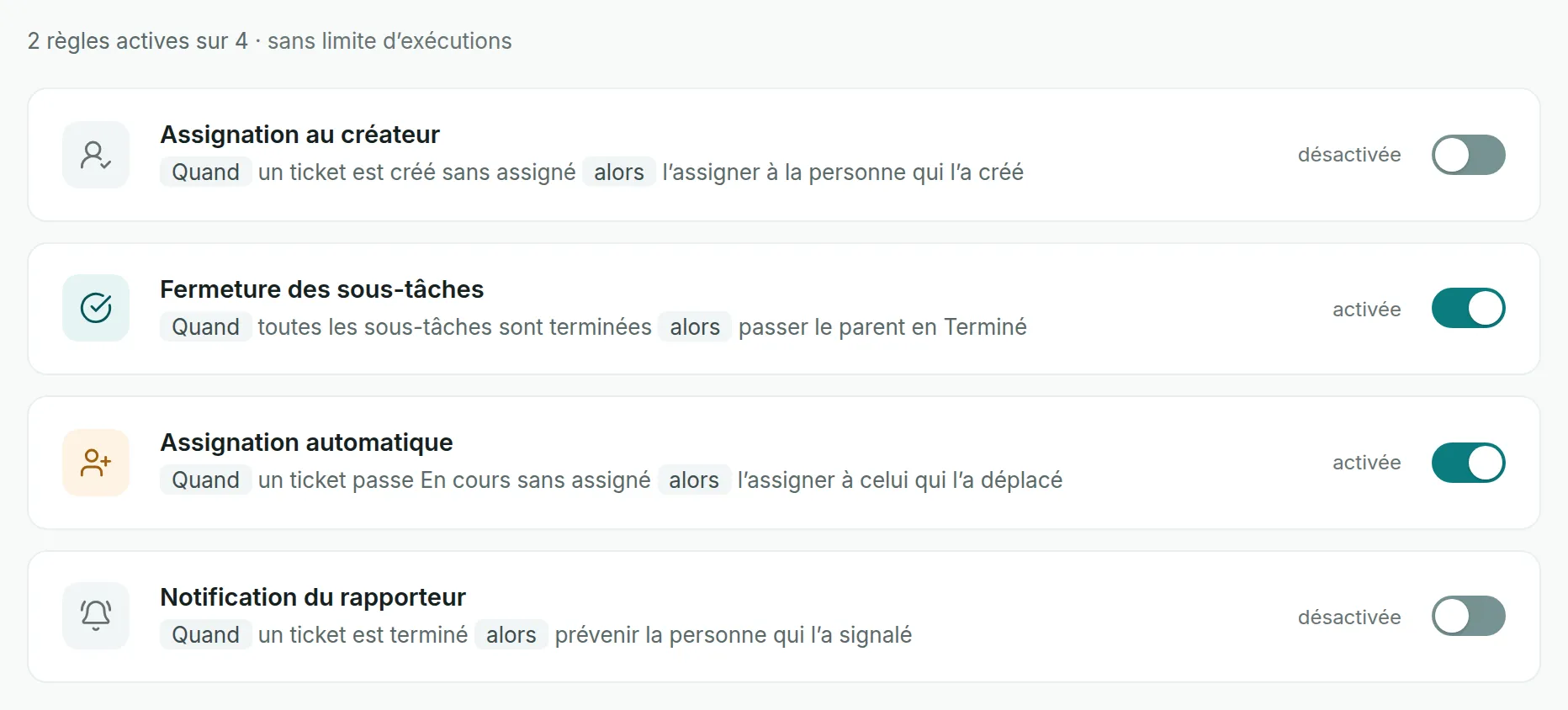
Turn a rule on or off
Link to the “Turn a rule on or off” section- Find the rule by its name.
- On the right of its card, click the switch.
- Check the state written next to the switch. A message confirms the change.
The rule acts from the next action onwards. It does not go back over existing tickets, so turning on an assignment rule assigns no ticket already created.
Choose the right rule
Link to the “Choose the right rule” section| Rule | What it does |
|---|---|
| Assign to creator | A ticket created with no assignee is assigned to the person who created it. An assignee chosen at creation is never replaced. |
| Close on subtasks | When a ticket moves to a status of the Done category and all the tickets attached to the same parent are there too, the parent moves to the first status of the Done category in the workflow. The rule goes up this way to three levels of parents. |
| Automatic assignment | A ticket that moves to a status of the In progress category with no assignee is assigned to the person who moved it. A ticket that already has an assignee keeps it. |
| Notify the reporter | Turning it on sends no extra notification. A ticket’s reporter is already told about each status change by the Status change on my tickets notification, unless they moved the ticket themselves. |
If you get stuck
Link to the “If you get stuck” section| What you see | What to do |
|---|---|
| Project settings does not appear in the sidebar. | You are not an Admin of the project. Ask an Admin to turn on the rule, or to give you the Admin role. |
| “This project is archived. Its automations can be read, but no longer changed.” | Unarchive the project, then go back to the Automations tab. |
| The switch does not move, and its tooltip says “This project is archived. Unarchive it to change its automations.” | Same cause: the project is archived. |
| “The automation rules could not be loaded.” | Click Retry under the message. |
| A message starts with “Could not change” | The rule has not changed. Reload the page, then click the switch again. |
Good to know
Link to the “Good to know” section- A disabled rule does nothing. All the rules of a new project are disabled.
- The change made by a rule is recorded in the ticket’s history, under the name of the person whose action triggered the rule.
- A parent closed by Close on subtasks triggers the Status change on my tickets notification for its reporter and its assignee, except for the person whose action triggered it.
- No limit caps the number of times a rule runs.
Loading search…