How-to
Link tickets
A link says that one ticket blocks another, duplicates it or relates to it. You add it from either ticket, and it shows on both.
Link the ticket
Link to the “Link the ticket” section- Open the first ticket.
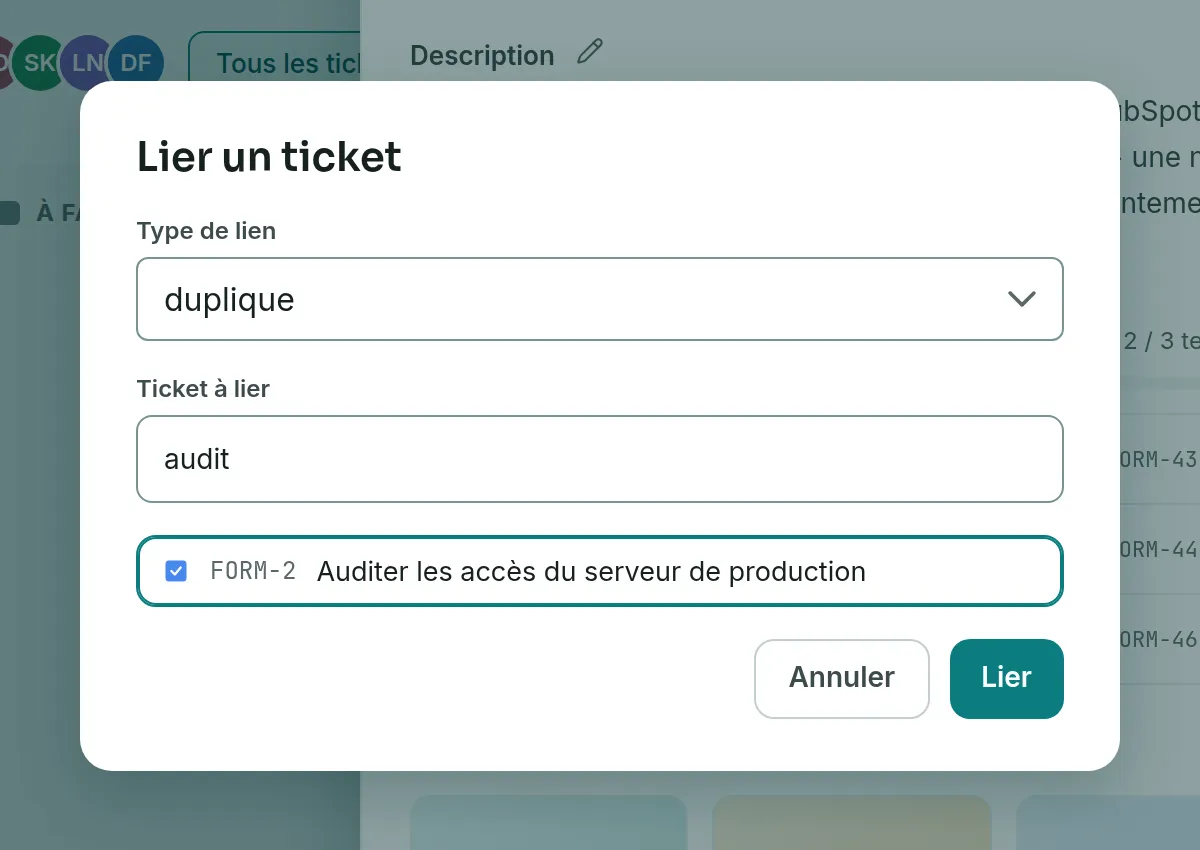
- Below the ticket’s summary, click Link. The Link a ticket button, at the top of the Links section, opens the same window.
- In Link type, choose the relationship. is blocked by is selected by default.
- In Ticket to link, type the key or words from the summary of the other ticket.
- In the list, click the ticket you want.
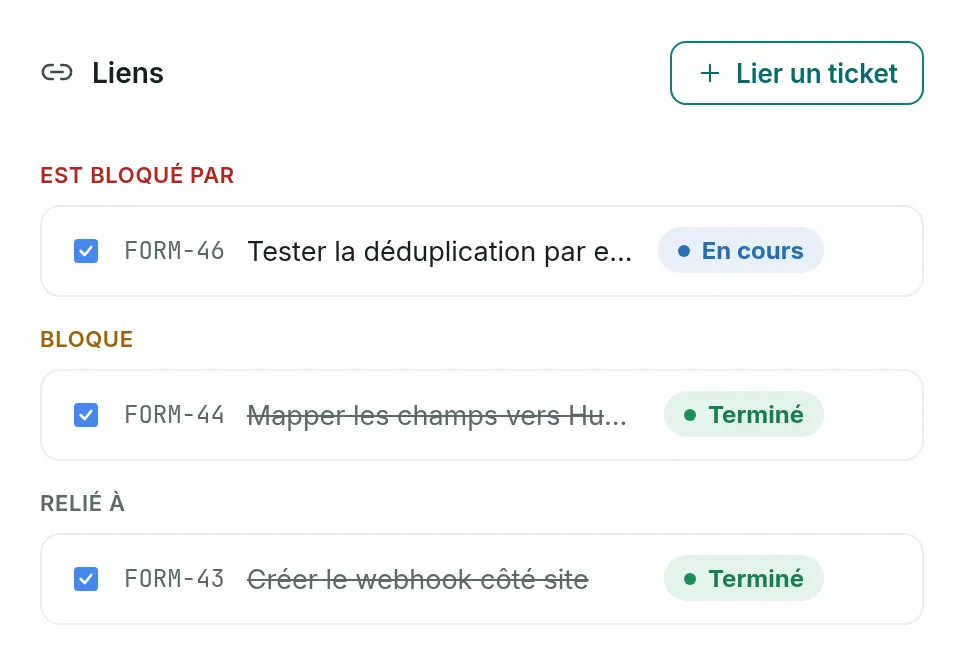
- Click Link. The link appears in the Links section, under the heading of its type.
| Link type | What it says | On the other ticket |
|---|---|---|
| is blocked by | This ticket waits for the other one to be finished. | blocks |
| blocks | The other ticket waits for this one to be finished. | is blocked by |
| duplicates | This ticket overlaps with the other one. | duplicates |
| relates to | The two tickets relate to each other. | relates to |
On the other ticket, a duplicates link also shows under duplicates. So the heading does not say which of the two is the duplicate.
Remove a link
Link to the “Remove a link” section- Open either of the two tickets.
- In the Links section, hover over the link’s row. A cross appears at the end of the row.
- Click the cross. Its tooltip says Remove the link to followed by the other ticket’s key.
The link disappears at once from both tickets, without asking for confirmation.
If you get stuck
Link to the “If you get stuck” section| What you see | What to do |
|---|---|
| “This link already exists.” | The two tickets already have this type of link. There is nothing to redo. |
| “These two tickets cannot be linked.” | A ticket cannot be linked to itself, or to a ticket in another project. |
| “You are not allowed to link this ticket.” | You are a Viewer in this project. Ask a project Admin for the Member role. |
| “This link could not be saved. Try again.” | Try again in a moment. If the project has just been archived, no more links can be added to it. |
| “No ticket matches.” | Try the exact key, for example FORM-42, or other words from the summary. |
| “This project has no other ticket to link.” | Create the other ticket first. |
| “The search did not complete. Try again.” | Click Retry. |
| “The project’s tickets could not be loaded.” | Click Retry. |
| “This ticket’s links could not be loaded.” | Click Retry, in the Links section. |
| The Link button does not appear. | You are a Viewer in this project, or the project is archived. |
Good to know
Link to the “Good to know” section- The window only offers the project’s tickets, without the open ticket. With nothing typed, it shows the first few; type to search the whole project.
- Links are grouped by type, in this order: is blocked by, blocks, duplicates, relates to. Each row gives the key, the summary and the status of the other ticket. The summary of a finished ticket is struck through.
- Click the key or the summary of the other ticket to open it.
- An is blocked by link does not stop you from changing the ticket’s status. It informs the team; it does not lock anything.
- Adding or removing a link leaves no trace in the ticket’s history.
Loading search…