Concepts
Understanding the sprint report
A closed sprint’s report gives what it delivered, frozen at closing, and breaks its tickets down by status, type, assignee and priority. Each part leads to the list of tickets in it.
A sprint has its report as soon as it is closed. Open it from the backlog, with View the report in the header of the closed sprint, or from Reports in the sidebar, with Sprint report next to the sprint. Any project member can view it, Viewers included.
The header gives the sprint’s name, its period and when it was closed, for example “Closed on September 10, 2026 at 6:00 PM”.
The summary
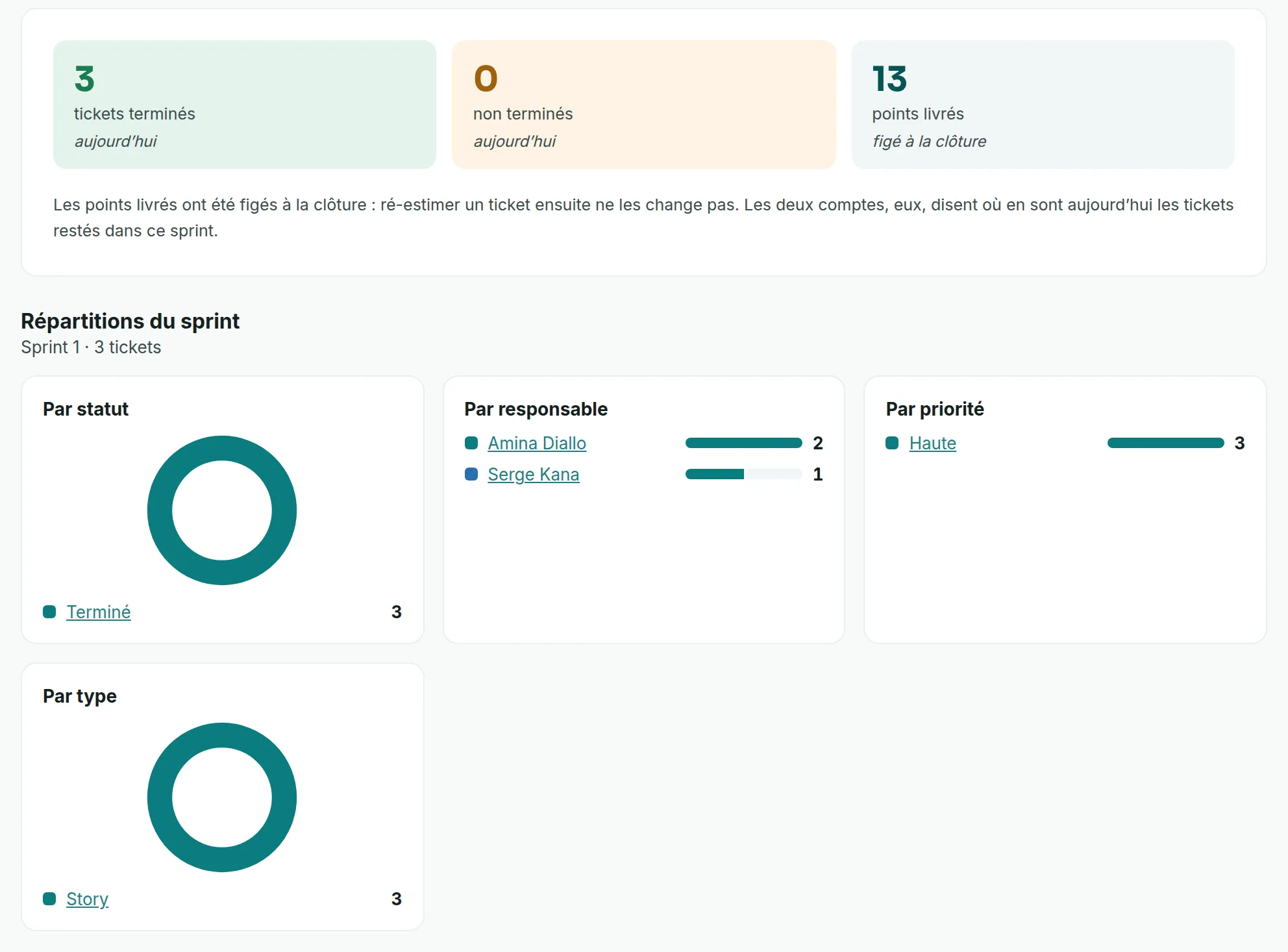
Link to the “The summary” sectionThree tiles repeat those of the closing window: tickets done, unfinished and points delivered. They do not all say the same thing, and each one carries its own mention.
The points delivered are frozen at closing. This is the sum of the points of the tickets done at that moment, the one that counts in velocity. Re-estimating a ticket afterwards does not change it.
The two counts carry the mention today. They describe the tickets that are in the closed sprint when you read the report. Just after closing, unfinished is usually zero, since the unfinished tickets left for the next sprint or for the backlog. This count changes if a ticket of the closed sprint is reopened later.
The breakdowns
Link to the “The breakdowns” sectionUnder the summary, Sprint breakdowns sorts the sprint’s tickets in four ways. The subtitle gives the sprint’s name and the number of tickets counted.
- By status and By type are drawn as rings.
- By assignee and By priority are drawn as bars.
Each part gives its number of tickets. A ticket with no value keeps its own part: Unassigned, No priority or No type. Like the two counts of the summary, the breakdowns describe the current state of the sprint’s tickets, not their state at closing. A sprint with no ticket at all shows none.
Open the tickets of a part
Link to the “Open the tickets of a part” sectionClick the name of a part. Advanced search opens, filtered on the project, the sprint and the chosen value. There you can refine the criteria, save the search with Save this filter, or download the list with Export to CSV. See Export tickets to CSV.
The Unassigned, No priority and No type parts cannot be clicked.
Good to know
Link to the “Good to know” section- The report of a sprint that is not closed does not show. The screen says “This sprint is not closed yet: its report will appear once the iteration is over.”
- If the report does not load, the screen shows “The sprint report could not be loaded.” followed by the cause, with Retry.
- “This sprint does not exist, or you are not a member of the project.” means that the address leads to no sprint, or that you are not a member of its project.
- The report’s charts cannot be exported as an image. To take away the tickets of the whole sprint, open a part, remove the chip of its value with its cross in advanced search, then click Export to CSV. The file gives the status, type, priority and assignee of each ticket.