How-to
Create a ticket
A ticket describes a piece of work to do in a project. You create it from the board, the backlog or the top bar, and only the summary is required.
Open the creation window
Link to the “Open the creation window” section- In your project, open Board in the sidebar.
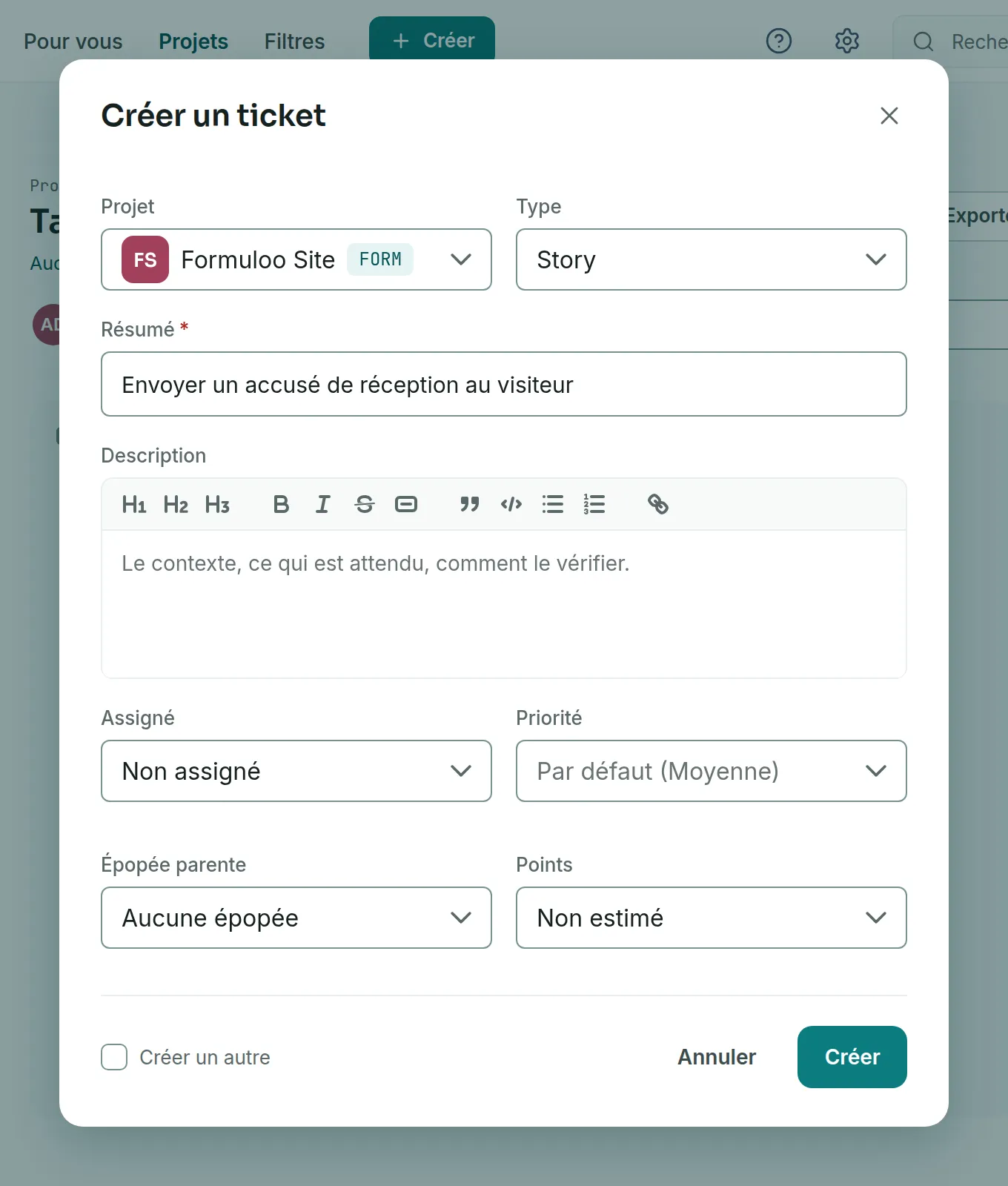
- At the top right, click Create an issue. The Create an issue window opens, with the cursor in the Summary field.
Other routes lead to the same window:
- On the board or the backlog, press C outside an input field.
- From any screen, click Create in the top bar, then Issue.
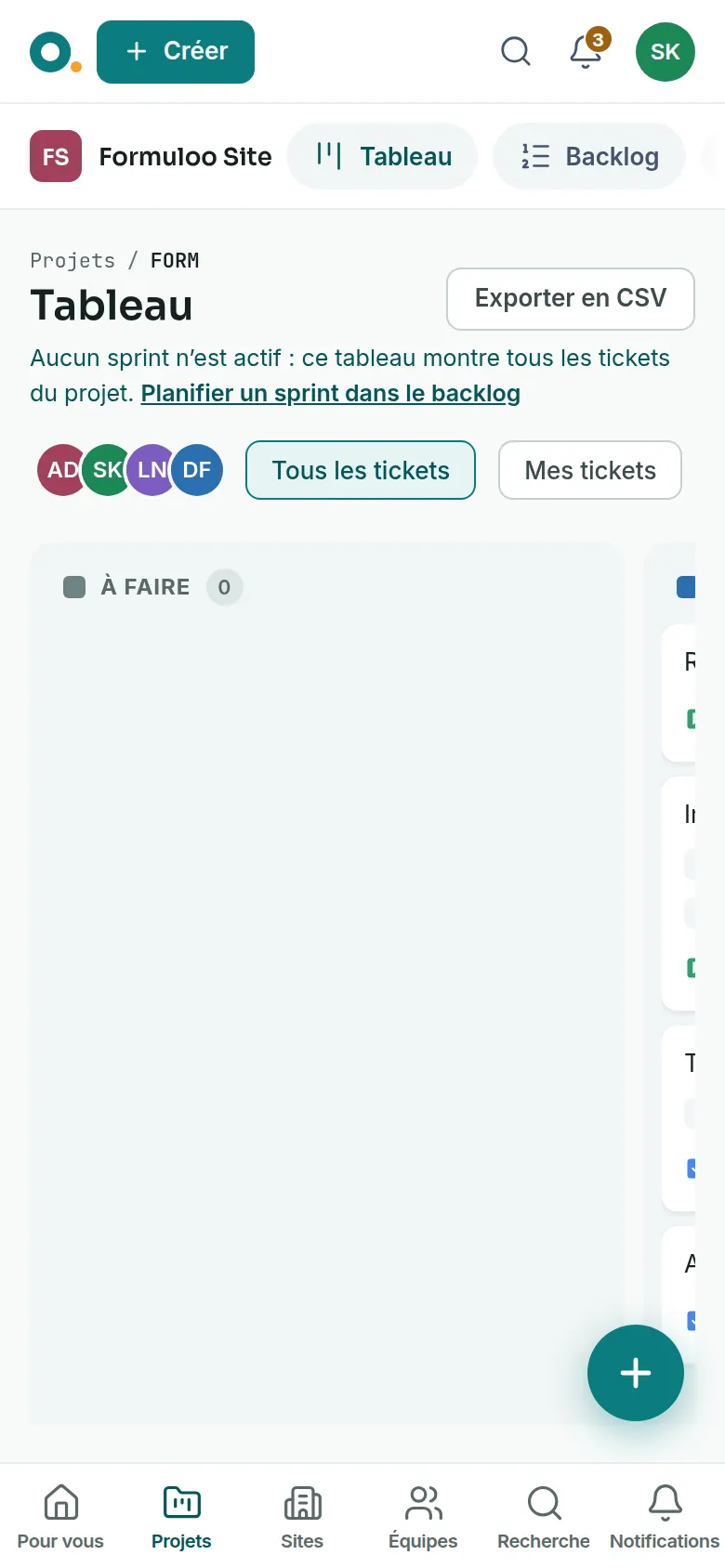
- On a phone, tap the round + button at the bottom right of the board.
Fill in the fields
Link to the “Fill in the fields” section- If the window offers a list of projects, check the Project. The ticket will be created in that project.
- Choose the Type: Epic, Story, Task or Bug. It is Story by default. The list also offers Subtask, but a sub-task is created from its parent.
- Write the Summary, in 255 characters at most.
- Optional: fill in the other fields.
| Field | What to know |
|---|---|
| Description | The context of the work. The toolbar formats the text: headings, bold, italic, strikethrough, code, quote, lists and links. |
| Assignee | A member of the project. If you choose nobody, the ticket stays Unassigned. |
| Priority | From Highest to Lowest. If you choose nothing, the ticket gets Medium. |
| Parent epic | The epic that groups this ticket. Leave No epic for an epic: an epic never has a parent. |
| Points | The estimate: 1, 2, 3, 5, 8 or 13. If you choose nothing, the ticket stays Not estimated. |
| Due date | A date, written as YYYY-MM-DD or picked in the calendar. |
| Labels | Type a label, then press Enter. A label is 1 to 50 characters long. |
| Sprint | Shown only if the project has a running or planned sprint, and if you create from the board or the backlog. Left empty, the ticket goes to the backlog. |
Create the ticket
Link to the “Create the ticket” section- Optional: tick Create another to create several tickets in a row.
- Click Create. A message confirms the creation and gives the ticket’s key, for example “Issue FORM-48 created”.
With Create another, the window stays open. It clears the summary, the description, the assignee and the points, and keeps the project, the type, the priority, the epic, the due date, the labels and the sprint.
Create in place in the backlog
Link to the “Create in place in the backlog” section- In your project, open Backlog in the sidebar.
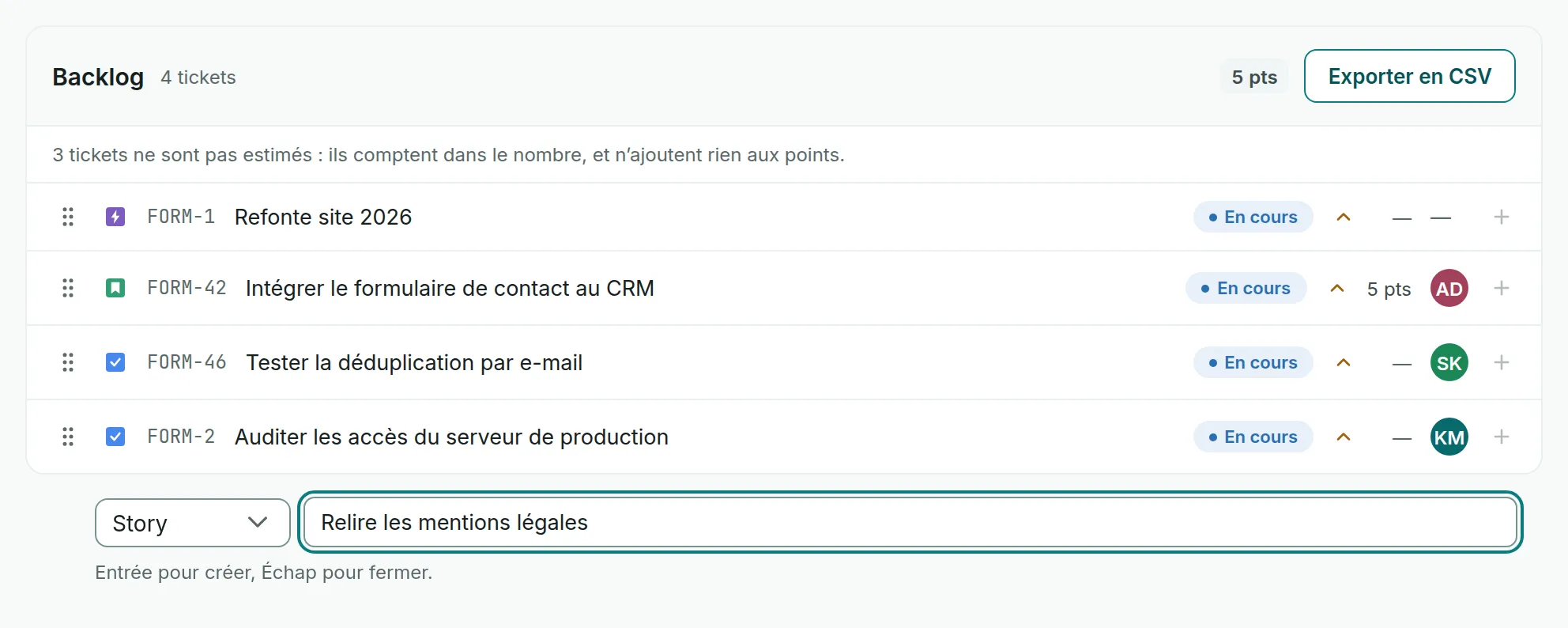
- Below the backlog list, click Create a ticket. An input row opens.
- In the list on the left, choose Story, Task or Bug.
- Type the summary, then press Enter. The ticket is created at the end of the backlog, and the row stays open for the next one. Esc closes it.
At the end of each backlog row, the + button, whose tooltip says Create a ticket below, creates the ticket just below that row. In a planned sprint, Create a ticket puts the new ticket straight into that sprint.
If you get stuck
Link to the “If you get stuck” section| What you see | What to do |
|---|---|
| “The summary is required.” | Write a summary. It is the only required field. |
| “The summary is limited to 255 characters; the rest was not kept.” | Reread the end of the summary: the pasted text was cut at 255 characters. Put the rest in the Description. |
| “A summary is required and must not exceed 255 characters.” | Check the summary: it is required and fits in 255 characters. If it is correct, the service refused another field: a Subtask type with no parent, an Epic with a Parent epic, or a label longer than 50 characters. |
| “Date not recognised. Write it as YYYY-MM-DD, or pick it in the calendar.” | Correct the Due date, for example 2026-10-15, or pick it with the calendar icon. |
| “Your role on this project does not allow creating an issue.” | You are a Viewer in this project. Ask a project Admin for the Member role. |
| “This project is archived: it is read-only.” | A project Admin must unarchive it first. |
| “This project no longer exists, or you are no longer a member of it.” | Choose another Project, or ask an Admin to add you again. |
| “None of your projects lets you create a ticket.” | You are not a Member or Admin of any active project. Ask an Admin of the project you need for that role. |
| “… was created, but it stayed in the backlog.” | The ticket exists, but the chosen sprint refused it. Place it from the backlog, as Plan a sprint explains. |
| “… was created, but it stayed at the end of the backlog.” | The ticket exists, but its place below the chosen row was refused. Drag it where you want it. |
| “The ticket was not created.” | In-place creation in the backlog. The message gives the reason underneath, which matches one of the rows of this table. |
| “Your session has expired. Sign in again, then retry.” | Sign in again, then start over. |
| The Create an issue button does not appear. | You are a Viewer in this project, or the project is archived. |
Good to know
Link to the “Good to know” section- A new ticket takes the first status of the “To do” category of the workflow, and you are its Reporter.
- The key, such as FORM-48, is assigned when the ticket is saved. It never changes, and a deleted number is never reused.
- If the Assign to creator rule is turned on in the project, a ticket created without an assignee is assigned to you.
- The person you assign receives a notification, unless it is you.
- A label already used in the project keeps the project’s spelling: “urgent” becomes “Urgent” if the project writes it that way.
- On the board, closing the window without creating keeps what you typed. When you reopen it, Draft restored says so, and Clear draft starts again from scratch.
- On the Epics screen of a project that has none yet, Create an epic opens this same window. Then choose Epic in Type.
Loading search…