How-to
Comment and mention
A ticket’s comments are where you talk with the team. A mention, with @, alerts a project member directly.
Write a comment
Link to the “Write a comment” section- Open the ticket.
- Below the Links section, open the Comments tab, shown by default.
- Click Add a comment….
- Write your text.
- Click Comment. The comment appears at the top of the thread, where the most recent one is always first.
Mention a member
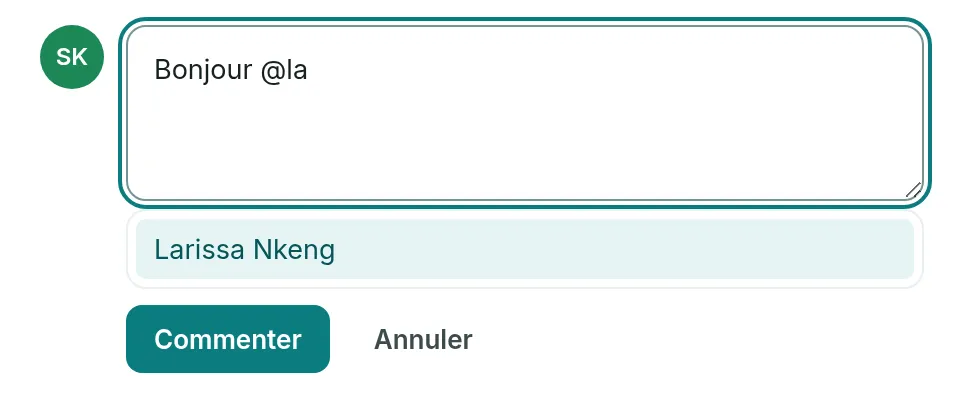
Link to the “Mention a member” section- In the comment text, type @ followed by the start of a first name or surname.
- In the list that opens, click the person. With the keyboard, choose them with ↑ and ↓, then Enter. Their full name is written after the @.
- Click Comment. The person receives a notification, for example “Amina Diallo mentioned you on FORM-42”.
The list offers the project’s members, five at most, with a word of their name starting with the letters you typed. Accents and capital letters do not matter.
Edit or delete a comment
Link to the “Edit or delete a comment” section- Below your comment, click Edit.
- Correct the text.
- Click Save. The (edited) mark appears next to the date.
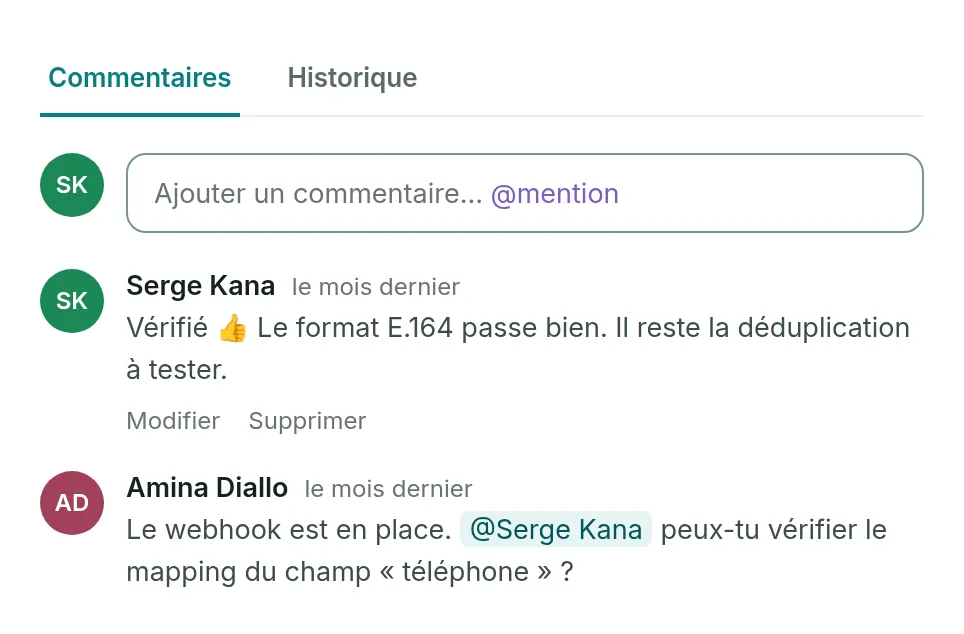
To remove a comment, click Delete below it. It disappears at once, without asking for confirmation, and cannot be recovered.
You edit and delete your own comments. A project Admin can edit and delete every comment.
If you get stuck
Link to the “If you get stuck” section| What you see | What to do |
|---|---|
| After Comment, your text disappears without being added to the thread. | The service refused the comment or did not answer, and the screen does not say so. The text is lost: write it again without an HTML tag such as <b>, without an image inserted in Markdown, and without a link other than http, https or mailto. Also check that the project is not archived. |
| “Discard this comment?” | You pressed Esc or clicked Cancel with text still in the box. Keep writing keeps it, Discard deletes it. |
| The person does not appear in the list after the @. | Type more letters: the list shows five names at most. If they still do not appear, they are not a member of the project. |
| “This ticket’s comments could not be loaded.” | Click Retry. |
| The Add a comment… box does not appear. | You are a Viewer in this project, or the project is archived. |
| Edit and Delete do not appear below a comment. | The comment is not yours, and only a project Admin touches other people’s comments. |
Good to know
Link to the “Good to know” section- A mentioned person receives a notification in the app, and also an email, unless they turned off the email for I am mentioned (@) in Notification preferences. Like all the product’s emails, it is in French: its subject is “Vous avez été mentionné dans FORM-42” (You were mentioned in FORM-42).
- The ticket’s reporter and assignee receive “… commented on …” in the app. The email for New comment on my tickets is turned off by default.
- Nobody is notified of their own comment. A mentioned person does not also receive the comment notification.
- Editing a comment does not alert again the people already mentioned. A person added while editing is alerted.
- A mention only counts if the inserted name stays intact. If you retype it by hand, the person is not alerted.
- The comment shows as plain text: the box has no formatting toolbar.
- Pasting or dropping a file into the comment box attaches it to the ticket, and inserts a reference in the text that opens it with a click.
- The thread shows the 50 most recent comments.
Loading search…