How-to
Manage user accounts
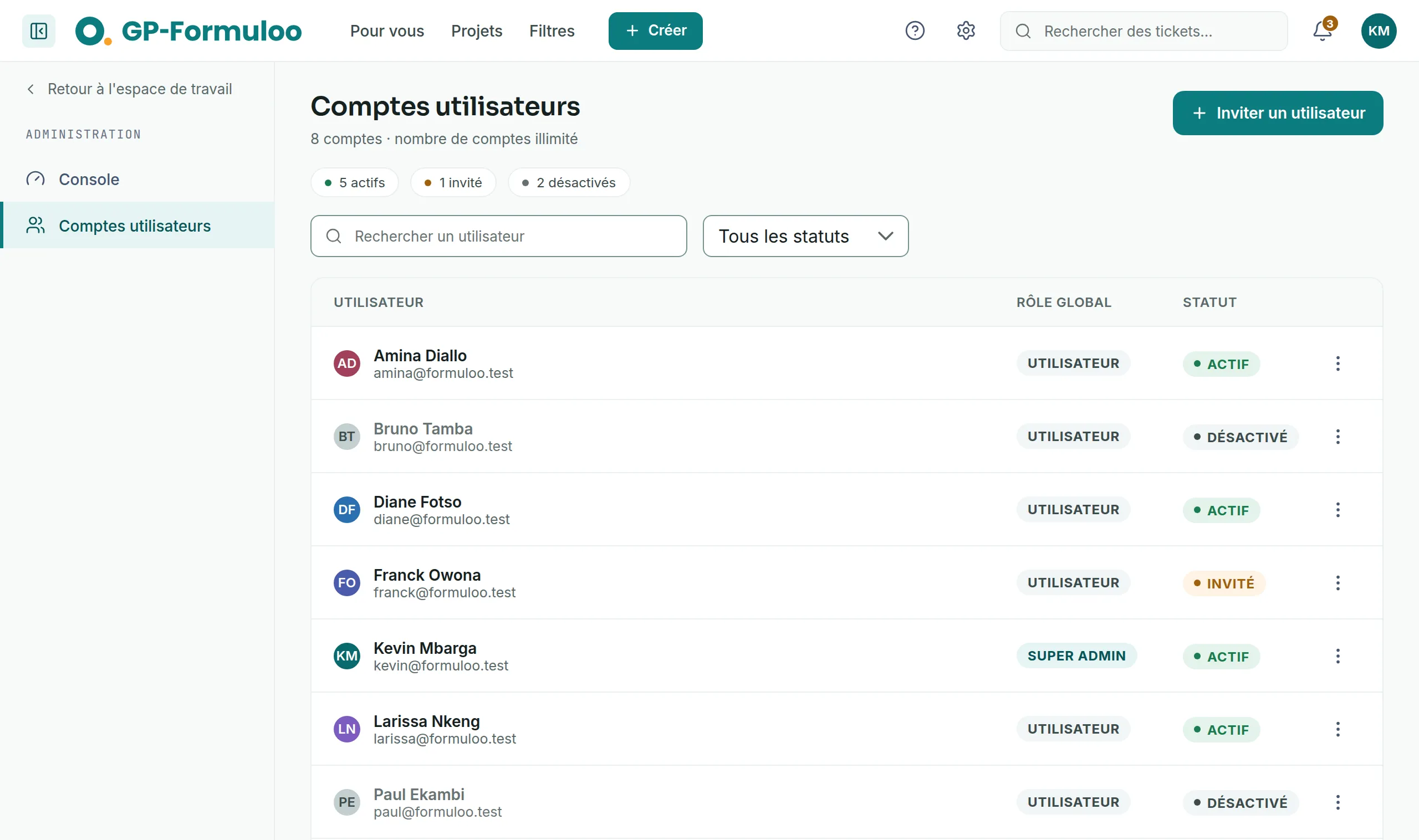
The list of accounts brings together everyone in the organisation. The Super Admin finds an account there, invites someone, adds them to a site or deletes an unused account.
Find an account
Link to the “Find an account” section- In the top bar, click Settings (the cog), then User accounts.
- In Search for a user, type part of the name or of the email address.
- To keep a single status, open the All statuses list and choose Active, Invited or Deactivated.
A line under the filters counts the accounts shown. The labels at the top always count the whole directory. If no account matches, click Clear the search or Show all statuses.
Invite a user
Link to the “Invite a user” section- At the top of the list, click Invite a user.
- In Email address, enter the person’s address.
- In Full name, enter their first name and last name.
- Click Send the invitation.
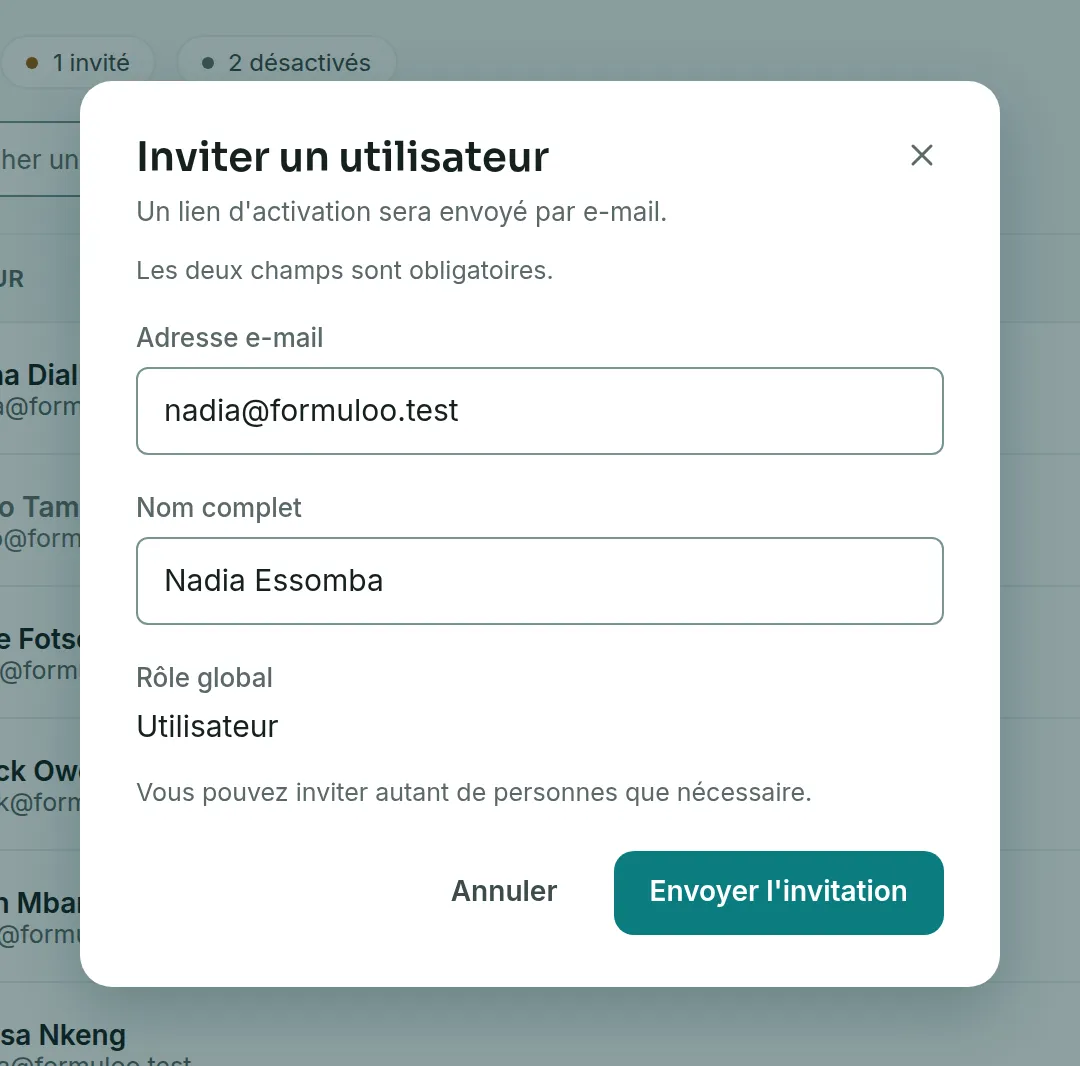
A message confirms the sending, and the account appears in the list with the Invited status. The person receives an email titled “GP-Formuloo : choisissez votre mot de passe” (GP-Formuloo: choose your password). Its Créer mon mot de passe (Create my password) button leads to the page where they choose it. The account then moves to the Active status. This email and the sign-in pages are in French for everyone.
The Global role of an invited account is always User. This screen does not give the Super Admin role.
Add an account to a site
Link to the “Add an account to a site” section- On the account’s row, click the ⋮ button. Its tooltip says Actions for followed by the name.
- Choose Add to a site.
- In Site, choose the site.
- In Role in the site, leave Member or choose Administrator.
- Click Add. A message confirms that the person has joined the site.
For what comes next, see Manage a site’s members.
Delete an account
Link to the “Delete an account” sectionDeletion only works for an account with nothing attached to it, for example an invitation sent to the wrong address. For someone who has already worked in the tool, deactivate the account instead. See Deactivate an account.
- On the account’s row, click the ⋮ button, then Delete.
- Read the browser’s question, then confirm. The deletion is permanent.
If you get stuck
Link to the “If you get stuck” section| What you see | What to do |
|---|---|
| “Enter the email address of the person to invite.” | Fill in Email address. Both fields are required. |
| “Enter the person’s full name.” | Fill in Full name. |
| “This address is not valid. Example: firstname.lastname@example.com” | Correct the address. |
| “This address is already used by an existing account.” | The person already has an account. Look for it in the list. |
| “This account carries data: issues, projects or memberships. It cannot be deleted. Deactivate it instead; its history stays attributed.” | Deactivate the account instead of deleting it. |
| “This account is already a member of the site.” | The person is already in this site. Change their role from the site’s page. |
| “Account administration is reserved for the super administrator.” | Your account is no longer a Super Admin. Reload the page. |
Good to know
Link to the “Good to know” section- The list is sorted by name. The Global role column shows Super admin or User.
- An account that was invited, then deactivated before choosing its password, goes back to Invited when you reactivate it.
- This screen does not resend the invitation. If the person has lost the email or let the link expire, they can click Mot de passe oublié ? (Forgot password?) on the sign-in page, with the same address.
- An account that holds a pending invitation to a project cannot be deleted either.
- On a phone, the two administration screens become tabs at the top of the page.