How-to
Create a project
Anyone who is signed in can create a Scrum or Kanban project. You give it a name and a key, and you become its Admin.
Open the form
Link to the “Open the form” section- In the top bar, click Create, then Project.
- You can also open Projects in the top bar, then click Create a project.
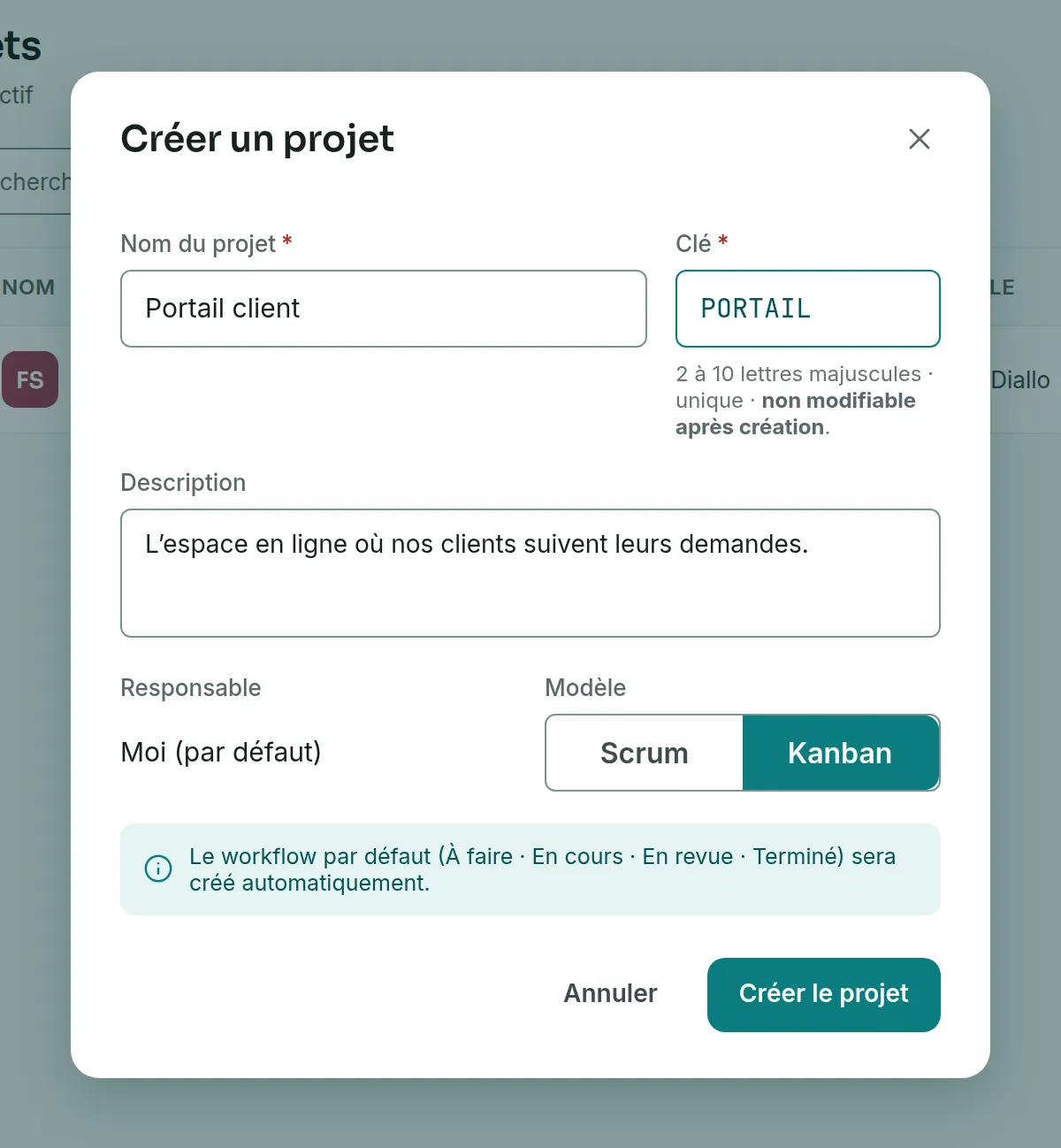
The Create a project window opens.
Fill in the form
Link to the “Fill in the form” section- In Project name, enter the name that members will see everywhere. The field is required.
- In Key, enter the project key, for example FORM. It will prefix every ticket: FORM-1, FORM-2, and so on.
- Optional: in Description, say what the project is for.
- Check the Owner. It is set to Me (default). Only a Super Admin can pick someone else from the list.
- If you belong to several sites, the Site field appears. Choose the project’s site. Without a choice, it shows My site (default), and the project goes into the first site you joined.
- In Template, choose Scrum or Kanban. Scrum is selected by default.
Create the project
Link to the “Create the project” section- Click Create the project. The window closes.
- The project appears in the projects list. Its My role column shows Admin.
- Click the project name to open its board.
If you get stuck
Link to the “If you get stuck” section| What you see | What to do |
|---|---|
| “The name is required.” | Enter a name in Project name. |
| “The key is required.” | Enter a key in Key. |
| “The key has 2 to 10 capital letters, with no digit or space.” | Remove the digits, spaces, accents and symbols. |
| “This key is already taken by another project. Choose a different one.” | A key belongs to one project only, even an archived one, even one you cannot see. Choose another. |
| “The chosen owner no longer exists. Reload the page.” | Reload the page, then choose the owner and the site again. |
| “Your session has expired. Sign in again to continue.” | Sign in again, then start the creation again. |
| “The service is temporarily unavailable. Try again in a moment.” | Wait a moment, then click Create the project again. |
Good to know
Link to the “Good to know” section- The project gets the default workflow: To do, In progress, In review and Done. Both templates get the same one. You can adapt it, see Add a status to the workflow.
- You are Admin of this project only. Only its members, and Super Admins, can see it.
- If you do not belong to any site yet, the product creates one for you along with the project. You are its administrator.
- When a Super Admin picks another owner, that person is not added to the members. The form reminds you of this. Add them afterwards, see Add a member to a project.
- If you close the window while typing, your text is still there when you open it again, under Draft restored. Clear draft starts again from an empty form.
- The product does not yet let you change a project’s name, description, owner or template after creation. The key never changes.
Loading search…