How-to
Choose a project key
The key, such as FORM, prefixes every ticket of the project. It has 2 to 10 capital letters, it is unique and it cannot be changed after creation.
Choose the key
Link to the “Choose the key” sectionA valid key follows three rules:
- It has 2 to 10 letters, from A to Z, in capitals. No digit, no space, no accent, no hyphen.
- No other project has it, even an archived one, even a project you cannot see.
- It is permanent. Every ticket of the project carries it in its own key, for example FORM-42.
Prefer a short key taken from the project name, such as FORM for “Formuloo Site”. You will read it on every ticket.
Enter the key
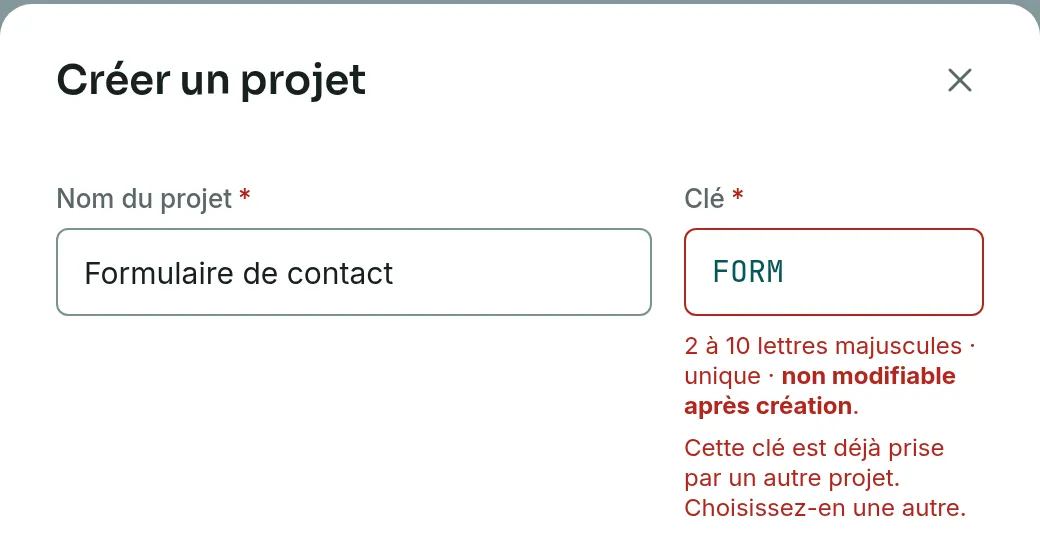
Link to the “Enter the key” section- In the Create a project window, click in the Key field. Under the field, the product recalls the rule: 2 to 10 capital letters · unique · cannot be changed after creation.
- Type the key. Lower-case letters become capitals as you type.
- Leave the field. If a project you can see already has this key, the message appears under the field. For other projects, the check happens when you send the form.
- Finish with Create the project.
If you get stuck
Link to the “If you get stuck” section| What you see | What to do |
|---|---|
| “The key is required.” | Enter a key before creating the project. |
| “The key has 2 to 10 capital letters, with no digit or space.” | Remove the digits, spaces, accents and symbols, or complete a one-letter key. |
| “The key holds at most 10 letters; the rest was not kept.” | The field kept the first ten letters. Check that they suit you, or shorten the key. |
| “This key is already taken by another project. Choose a different one.” | Choose another key. |
| “Check the name and the key: the input was rejected.” | The service refused the key or the name. Check both, then click Create the project again. |
Good to know
Link to the “Good to know” section- The key stays the same for the whole life of the project. Ticket keys, and the links that quote them, such as /t/FORM-42, therefore stay valid.
- An archived project keeps its key. No project can be deleted for now. A key that has been used is therefore never freed.
- The key appears in the Key column of the projects list, and under the project name in its sidebar.
Loading search…