How-to
Close a sprint
Closing a sprint freezes the points it delivered and sends its unfinished tickets to the next sprint or to the backlog. The sprint’s report then becomes available.
Open the closing window
Link to the “Open the closing window” section- In your project, open Backlog in the sidebar.
- In the header of the running sprint, click Close the sprint.
- Read the summary at the top of the window: tickets done, unfinished and points delivered.
The points delivered are the sum of the points of the tickets done. Closing freezes this figure.
Choose where unfinished tickets go
Link to the “Choose where unfinished tickets go” section- Under “Move 3 unfinished tickets to”, keep the first option to send these tickets to the next sprint. It carries the name of the project’s first Planned sprint, marked next sprint. If there is none, it shows A new sprint, marked will be created.
- To send these tickets back to the backlog instead, outside any sprint, tick Backlog.
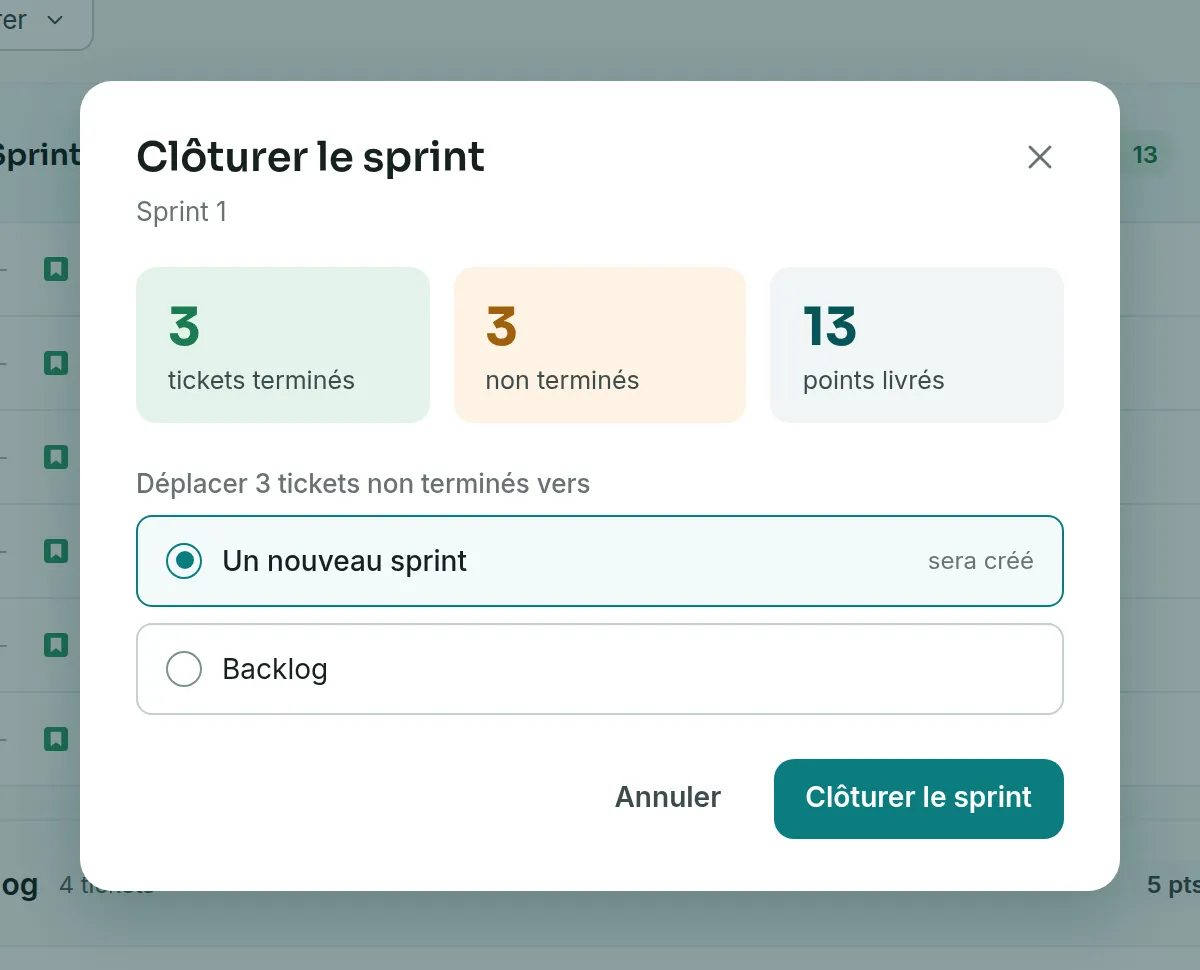
The first option is ticked each time the window opens.
Close the sprint
Link to the “Close the sprint” section- At the bottom of the window, click Close the sprint. The button shows Closing… while the request is sent.
- Check the sprint header. The sprint is now in the Closed state, and its tickets done have stayed in it.
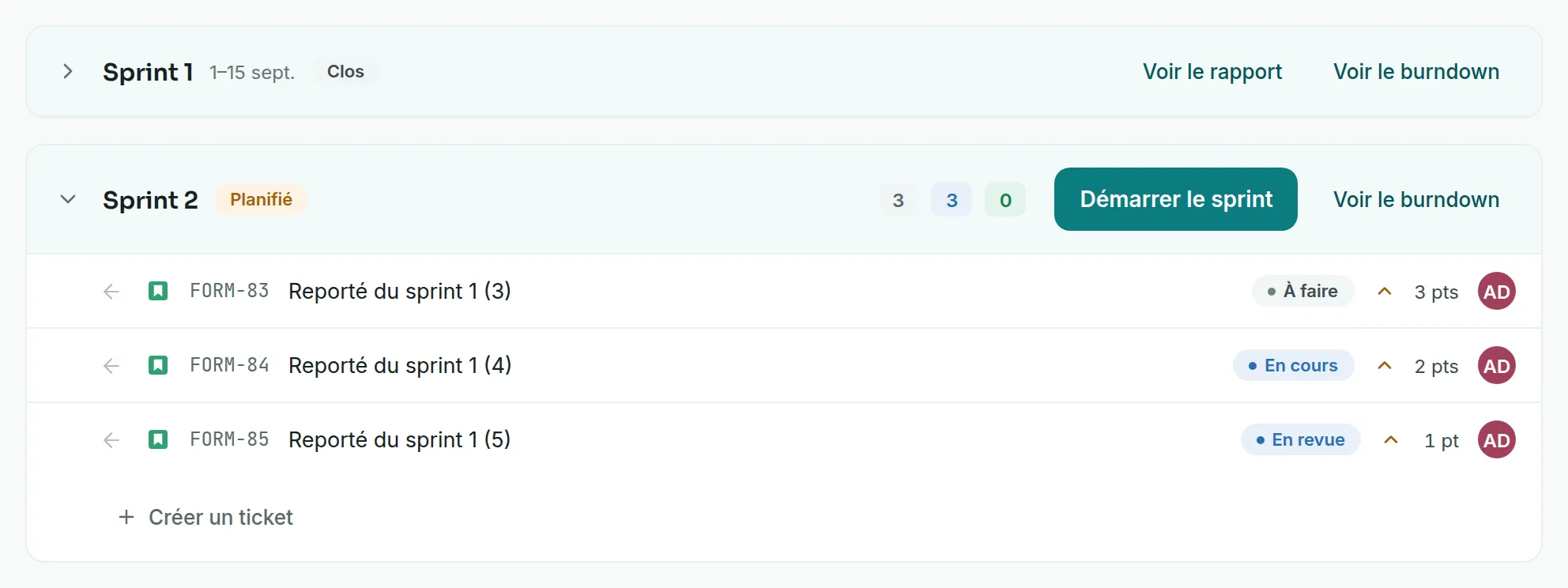
If you chose the next sprint, the backlog expands that sprint. It now holds the carried-over work, and you start it like any other sprint. To read the summary again later, click View the report in the header of the closed sprint.
If you get stuck
Link to the “If you get stuck” section| What you see | What to do |
|---|---|
| “The current state does not allow this action.” | The sprint or its tickets changed during your action. Someone else may have changed a ticket, a colleague may have closed the sprint already, or the project may have been archived in the meantime. Close the window, then reload the page. If the sprint is still In progress, close it again. |
| “You do not have the rights required for this action.” | Your role no longer lets you close this sprint. Ask a project Admin for the Member role. |
| “The service is temporarily unavailable. Try again in a moment.” | Nothing was closed, and the sprint stays In progress. Click Close the sprint again a little later. |
| The Close the sprint button does not appear. | The sprint is not in progress, you are a Viewer in this project, or the project is archived. |
Good to know
Link to the “Good to know” section- The points delivered are frozen at closing. Re-estimating a ticket afterwards changes neither the sprint report nor velocity.
- A ticket counts as done when its status belongs to the Done category of the workflow.
- Tickets done stay in the closed sprint, for its history and its velocity. Only unfinished tickets leave.
- A sprint created on the fly takes the next number and the matching name, for example “Sprint 2”. It waits in the Planned state.
- The window always offers the first planned sprint. To split the carried-over work differently, move the tickets from the backlog afterwards.
- A closed sprint cannot be reopened. Its burndown stops moving, but you can still view it with View the burndown.
- Closing sends a notification to the other project members. The email for the A sprint is closed event is off by default, and each person sets it in their Notification preferences.
Loading search…