How-to
Invite someone by email
Someone outside the project’s site, or without an account, is invited by their email address. They receive an email and join the project by accepting the invitation.
Invite the person
Link to the “Invite the person” section- In your project, open Project settings in the sidebar, Members & roles tab.
- In the Add someone to the project field, enter the person’s full email address.
- As soon as the address is complete, the button at the end of the row changes from Add to Invite. The list also offers Invite “…”, followed by the address.
- In the list of roles, choose the role the person will get: Admin, Member or Viewer. Member is selected by default.
- Click Invite.
- A message confirms that the invitation was sent. It appears under Pending invitations, with the proposed role, the date it was sent and the label Pending.

If the address belongs to someone from the project’s site, they join straight away, with no invitation. The message then says “… joined the project.”.
Accept the invitation
Link to the “Accept the invitation” sectionThe invited person receives an email, depending on whether they already have an account.
- With an account, they receive “Vous êtes invité à rejoindre un projet” (You are invited to join a project). The Ouvrir cette invitation (Open this invitation) button leads to the invitation page. A notification also waits for them in the app.
- Without an account, the product creates one for them. They receive “GP-Formuloo : choisissez votre mot de passe” (GP-Formuloo: choose your password). The Créer mon mot de passe (Create my password) button lets them choose their password, then give their name, before taking them back to the invitation.
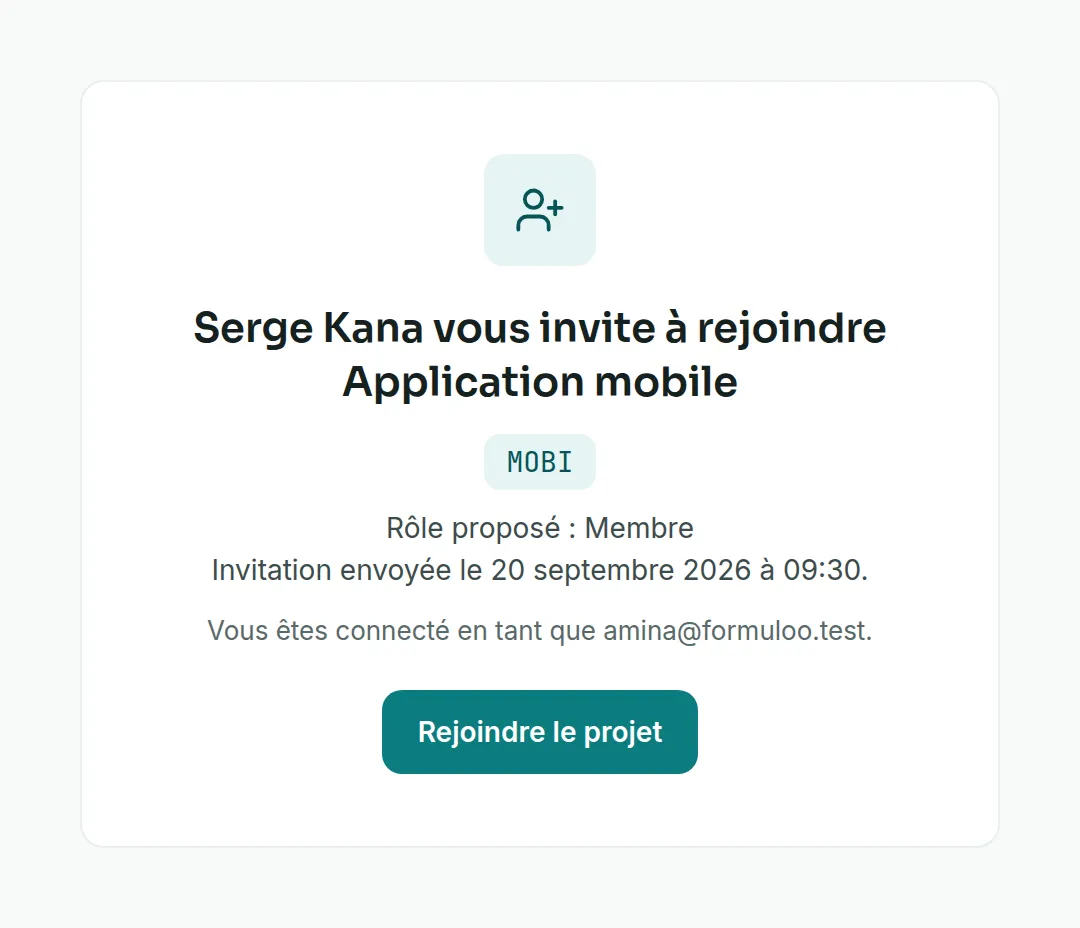
On the invitation page, the person reads who invites them, to which project and with which role. They must be signed in with the account of the invited address. They click Join the project and arrive on the project’s board.
Cancel an invitation
Link to the “Cancel an invitation” section- Under Pending invitations, find the invitation.
- Click the cross at the end of the row. Its tooltip says Cancel the invitation.
- Read the message “Invitation to … cancelled.”. No confirmation is asked.
To change the proposed role, cancel the invitation, then invite the person again with the right role.
If you get stuck
Link to the “If you get stuck” section| What you see | What to do |
|---|---|
| The button stays greyed out and shows Add. | The address is incomplete. Enter it in full, with its @ and its domain. |
| “This e-mail address is not valid.” | Correct the address, then click Invite again. |
| “This person is already a member of THIS project.” | Nothing to do. Change their role if needed in the Role column. |
| “This project is archived: nobody can be invited to it any more.” | Unarchive the project first. |
| “The account directory did not answer, so we cannot tell who matches. Try again shortly rather than inviting blindly.” | Wait a moment, then try again. |
| “The invitation failed. Try again shortly.” | Wait a moment, then try again. |
| “This invitation is no longer pending: it has just been accepted or cancelled.” | Reload the page. If the person accepted, they appear in the members table. |
| For the invited person, “This invitation is no longer valid” | The invitation was cancelled or already accepted, or the person is signed in with another account. They sign in with the right account, or ask for a new invitation. |
| For the invited person, “This project has been archived since the invitation: it can no longer be joined.” | An Admin of the project must first unarchive it. |
Good to know
Link to the “Good to know” section- An invitation does not expire. It waits until the person accepts it, or an Admin cancels it. The link in the password email, however, is only valid for a limited time, stated in the email.
- Inviting the same address again does not create a second invitation and keeps the role of the first one. For someone who has not chosen their password yet, a new link is sent.
- Until they accept, the person has access to nothing in the project.
- By accepting, the person also joins the project’s site. The project’s Admins are notified.
- The invited person can turn off these emails, on the Invitation to join a project line of their notification preferences.
- A Super Admin who types an address brings the person in directly, with no invitation to accept.
Loading search…