How-to
Create a sub-task
A sub-task breaks a story, a task or a bug into smaller steps. It is created from its parent, and follows the parent’s sprint.
Create the sub-task
Link to the “Create the sub-task” section- Open the parent ticket, from the board, the backlog or a search.
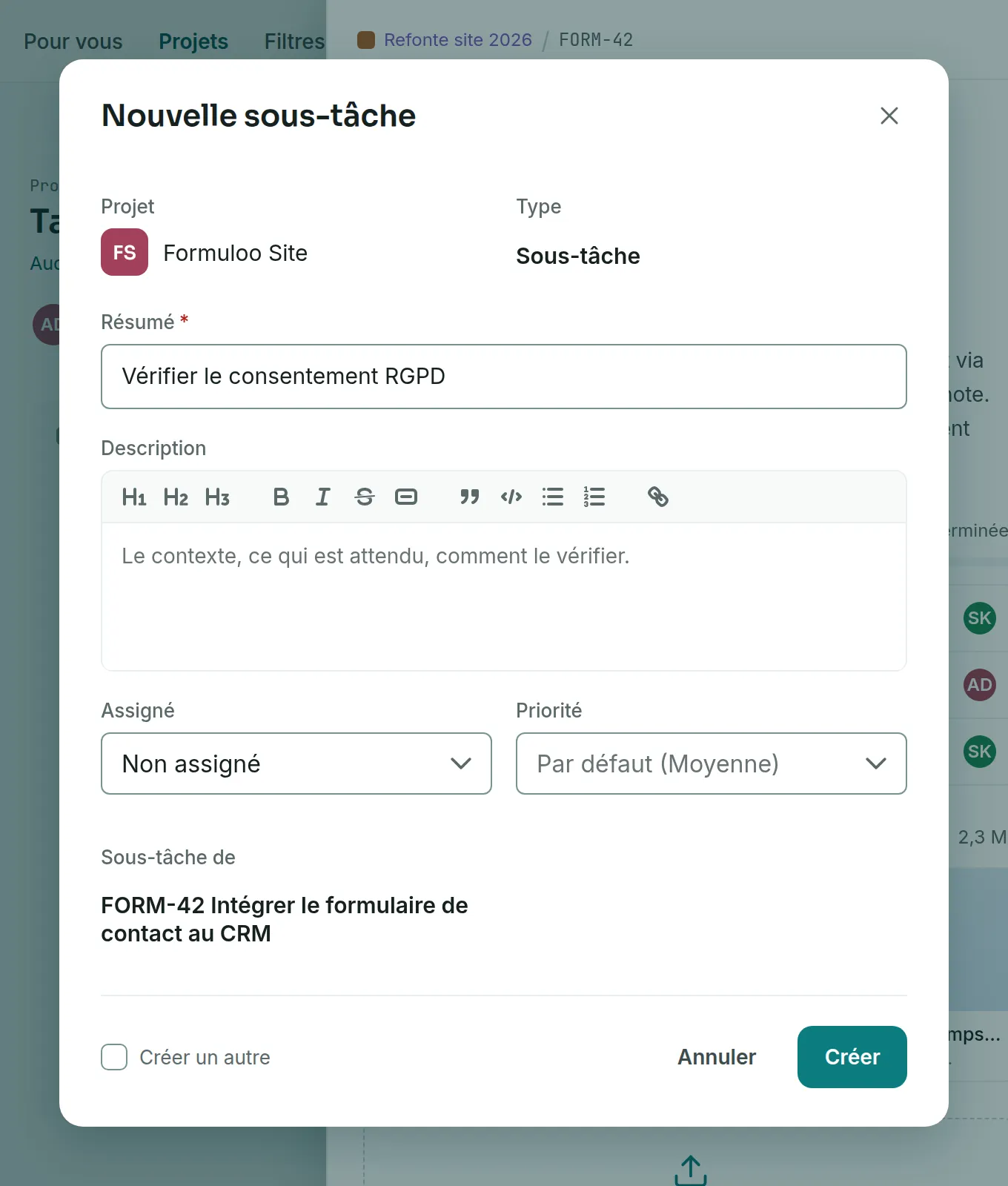
- Below the ticket’s summary, click Add a subtask. The New subtask window opens. Its Type is Subtask, and Subtask of names the parent.
- Write the Summary, in 255 characters at most.
- Optional: fill in Description, Assignee, Priority, Due date and Labels.
- Click Create. The sub-task appears in the parent’s Subtasks section.
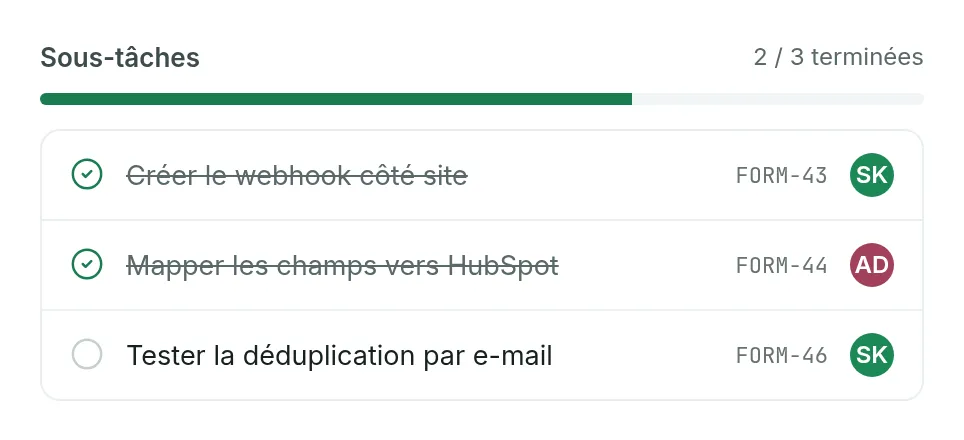
The Subtasks section shows progress, for example “2 / 4 done”, with a gauge. A sub-task counts as done when its status is in the Done category.
Plan it with its parent
Link to the “Plan it with its parent” sectionA sub-task does not go into a sprint on its own. It follows its parent.
- In your project, open Backlog in the sidebar.
- Put the parent into a sprint, as Plan a sprint explains. Its sub-tasks go into the same sprint.
If you take the parent out of the sprint, its sub-tasks leave with it.
A sub-task created while its parent is already in a sprint does not join that sprint by itself: it stays in the backlog. To bring it in, take the parent out of the sprint, then put it back.
Close the parent automatically
Link to the “Close the parent automatically” sectionThis part requires the Admin role in the project. It moves the parent to Done as soon as all its sub-tasks are done.
- In your project, open Project settings in the sidebar.
- Open the Automations tab.
- Turn on the Close on subtasks rule. It is turned off when the project is created.
From then on, when a ticket moves to a status in the Done category and all the tickets held by its parent are done, the parent takes the first Done status of the workflow. A story closed this way can in turn close its epic.
If you get stuck
Link to the “If you get stuck” section| What you see | What to do |
|---|---|
| The Add a subtask button does not appear. | The open ticket is an epic or a sub-task, you are a Viewer in this project, or the project is archived. |
| “The summary is required.” | Write a summary. |
| “A summary is required and must not exceed 255 characters.” | Check the summary, then the labels: each one fits in 50 characters. |
| “Your role on this project does not allow creating an issue.” | You are a Viewer in this project. Ask a project Admin for the Member role. |
| “This project is archived: it is read-only.” | A project Admin must unarchive it first. |
| “1 ticket(s) were not attached to the sprint”, then “RG-024 : une sous-tâche suit le sprint de son parent, elle ne se rattache pas seule” (a sub-task follows its parent’s sprint and cannot be added on its own) | You dragged a sub-task towards a sprint. Place its parent instead: the sub-task will follow it. This reason comes from the server and stays in French. |
| “Your change was not saved. The input was refused: check the fields.” | You changed a sub-task’s Parent or Type. A sub-task always keeps a parent that is a story, a task or a bug, and never changes type. |
Good to know
Link to the “Good to know” section- A sub-task carries no points: the New subtask window offers no Points, Parent epic or Sprint.
- A sub-task does not hold sub-tasks itself.
- The rows of the Subtasks section do not open on a click. To open a sub-task, click its card on the board, or search for its key in the search bar.
- To move a sub-task under another parent, change its Parent field in the panel. The list offers the project’s stories, tasks and bugs.
- Deleting a ticket deletes its sub-tasks with it. The confirmation window lists them first. Only a project Admin deletes a ticket.