How-to
Add a status to the workflow
Each workflow status is a column of the board. You add one in a category, then you place it, rename it, change its colour or delete it.
Add the status
Link to the “Add the status” section- In your project, open Project settings in the sidebar.
- Open the Workflow statuses tab.
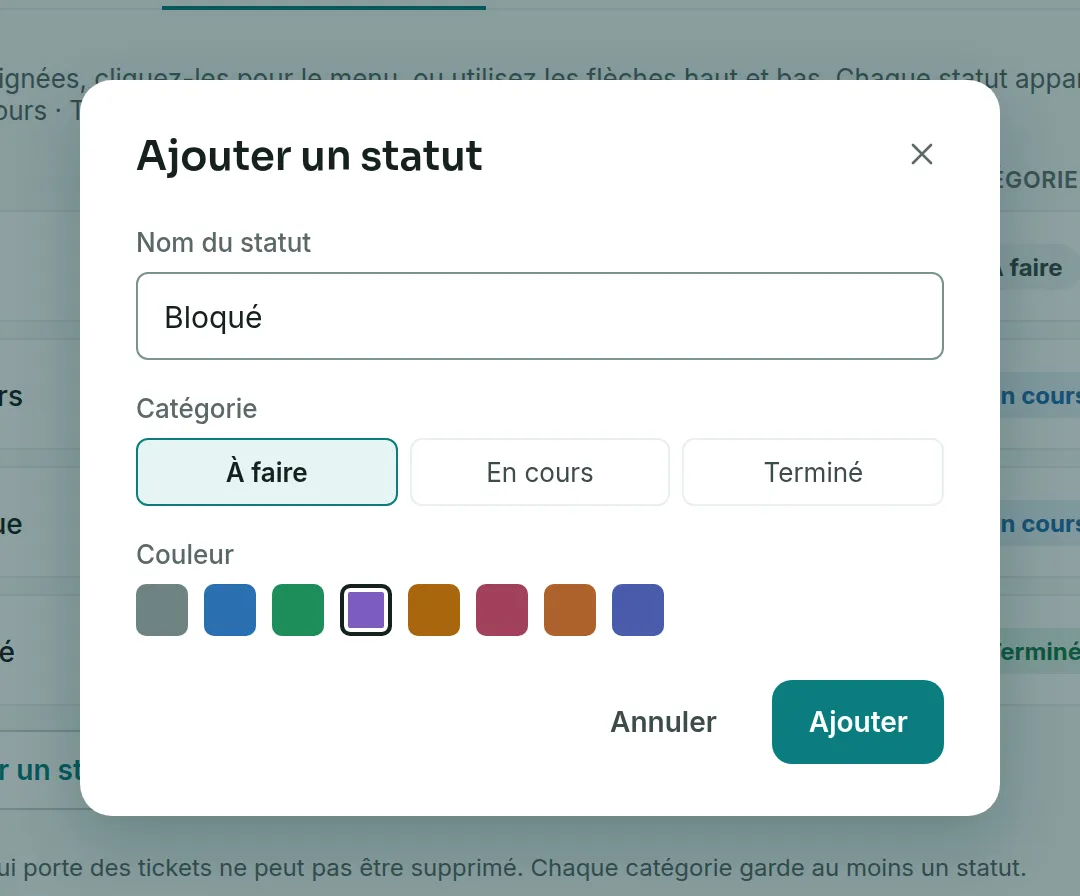
- Click Add a status.
- In Status name, enter the name of the column, for example “Blocked”.
- Under Category, choose To do, In progress or Done. In progress is selected by default.
- Optional: under Colour, choose a tint. The name of each tint appears on hover.
- Click Add, or press Enter in the name. The status is added at the end of the workflow.
Place it in the workflow
Link to the “Place it in the workflow” sectionThe order of the list is the order of the board’s columns, from left to right.
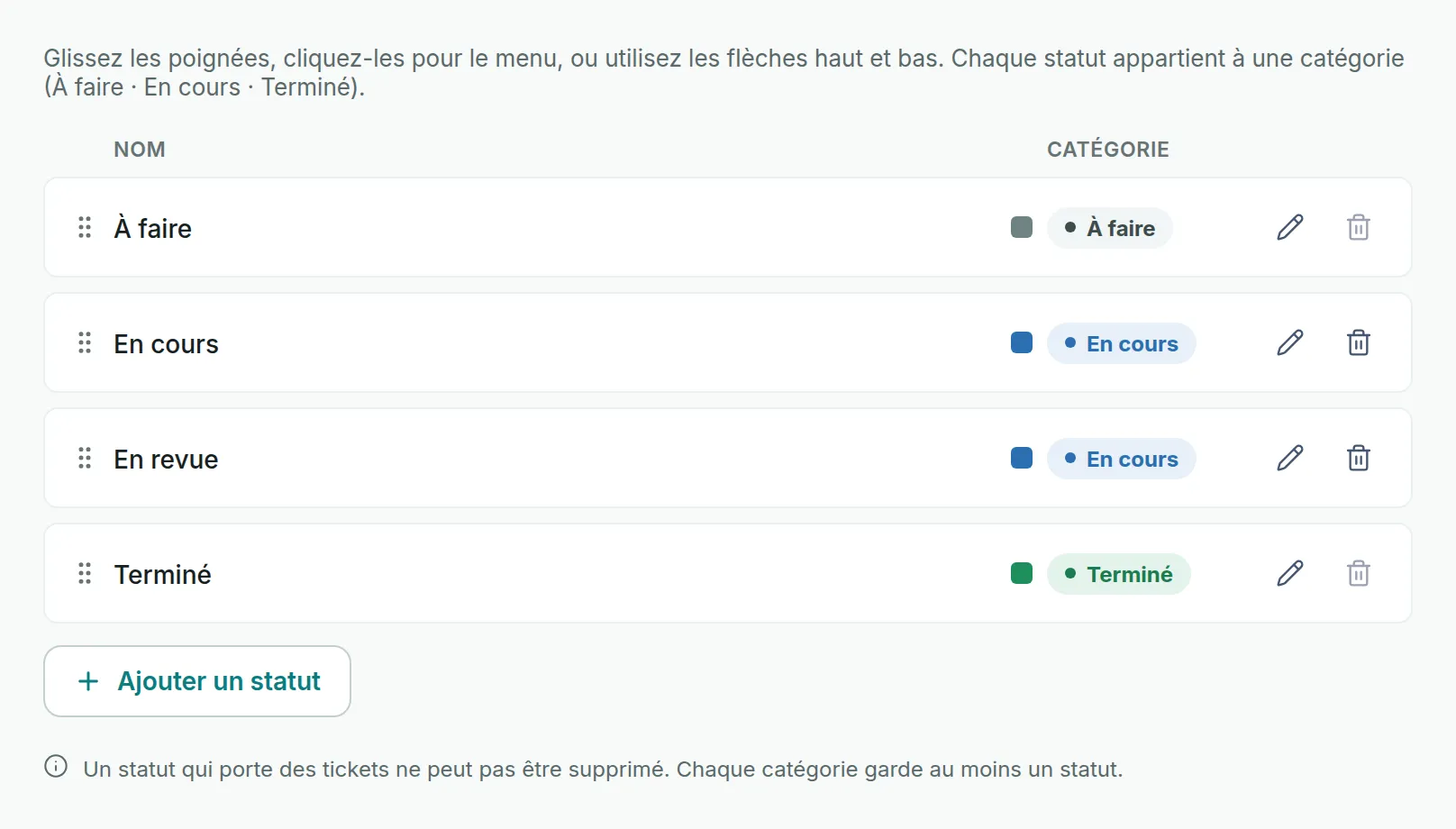
- Drag the status by its handle, on the left of the row.
- You can also click the handle to open its menu: Move up, Move down, Move to top or Move to bottom.
- With the keyboard, give the focus to the handle and use the ↑ and ↓ arrows.
After a move with the menu or the arrows, a message confirms the new position of the status.
Rename it or change its colour
Link to the “Rename it or change its colour” section- To rename, double-click the status name, or click the pencil on the row. Its tooltip says Rename.
- Enter the new name. Press Enter to save, or Esc to cancel.
- To change the colour, click the colour swatch, on the left of the category, then one of the eight tints: Slate, Ocean, Forest, Plum, Amber, Brick, Copper or Indigo. The change is immediate.
Delete a status
Link to the “Delete a status” section- On the status row, click the bin. Its tooltip says Delete this status.
- Read the Delete this status? window. It names the status being removed and reminds you that this cannot be undone.
- Click Delete.
A status that still holds tickets cannot be deleted. First move its tickets to another column of the board.
If you get stuck
Link to the “If you get stuck” section| What you see | What to do |
|---|---|
| “This key is already taken by another project. Choose a different one.”, behind the Add a status window | This message appears when the project already has a status with this name. Choose another name. |
| The bin stays greyed out, and its tooltip says for example “Last status of the “Done” category: it cannot be deleted.” | Each category keeps at least one status. First add another status in this category. |
| “suppression impossible : … tickets portent ce statut. Déplacez-les d’abord (RG-010).” (deletion impossible: … tickets hold this status, move them first) | On the board, move these tickets to another column, then delete the status. This message comes from the server and stays in French. |
| “This project is archived. Unarchive it to modify its workflow.” | Unarchive the project in the Archiving tab, or ask an Admin to do it. |
| The new name disappears and the old one comes back. | Another status of the project already has this name, or the field was empty. Choose a name that is free. |
Good to know
Link to the “Good to know” section- The board shows one column per status, in workflow order. A new status appears there straight away.
- The workflow is open. A card can move from any status to any other.
- A new ticket takes the first status of the To do category, in workflow order.
- A ticket placed in a status of the Done category counts as done, for example when a sprint is closed.
- A status’s category cannot be changed. To change category, add a new status, move the tickets to it, then delete the old one.
- Without a chosen colour, the status gets the Slate tint.
- Two statuses of the same project cannot have the same name.
Loading search…