How-to
Deactivate an account
Deactivating an account cuts a person’s access, for example when they leave, without erasing anything they did. The Super Admin can reactivate it at any time.
Deactivate the account
Link to the “Deactivate the account” section- In the top bar, click Settings (the cog), then User accounts.
- Look for the person in Search for a user.
- On their row, click the ⋮ button. Its tooltip says Actions for followed by the name.
- Choose Deactivate. No confirmation is asked.
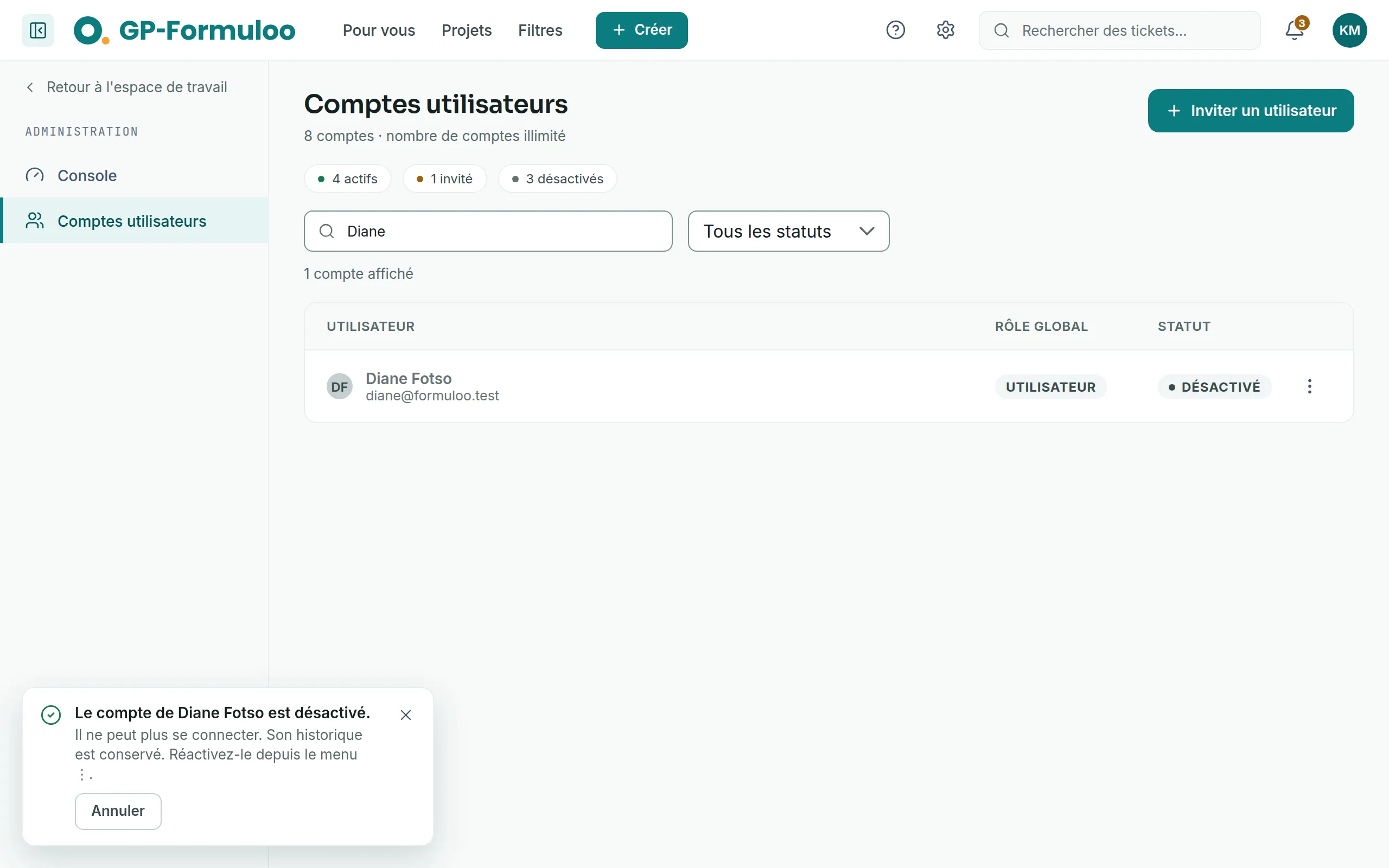
The row turns grey, with the Deactivated status. A message at the bottom of the screen confirms it: “It can no longer sign in. Its history is kept. Reactivate it from the ⋮ menu.”
Undo or reactivate
Link to the “Undo or reactivate” section- Right after, click Undo in the confirmation message. The account is reactivated at once.
- Later, open the row’s ⋮ menu and choose Reactivate. A message confirms that access is restored.
The person can then sign in again. An account that had not chosen its password yet goes back to Invited, not Active.
If you get stuck
Link to the “If you get stuck” section| What you see | What to do |
|---|---|
| “This account no longer exists in the directory. Reload the page.” | The account has been deleted in the meantime. Reload the list. |
| “The directory is temporarily unavailable. Try again shortly.” | Wait a moment, then choose Deactivate again on the same row. |
| “Account administration is reserved for the super administrator.” | Your account is no longer a Super Admin. |
Good to know
Link to the “Good to know” section- The person can no longer sign in, and their sessions already open are closed.
- Their tickets, their comments and the history of their changes stay in their name. In the list of a project’s members and on their card, when you hover over their avatar, a Deactivated account mention goes with it.
- They are no longer offered when someone assigns a ticket. Tickets already assigned to them stay so: reassign them if needed.
- They remain a member of their projects, sites and teams.
- They no longer receive notification emails. Their notifications keep arriving in the application, where they will find them if you reactivate them.
- Nobody can bring them into a new project. A project Admin who tries is asked to write to a Super Admin to explain why. To bring them in yourself, reactivate the account first.
- The product does not stop you from deactivating your own account, or the last Super Admin’s. Only a Super Admin reactivates an account, so always keep another Super Admin active.
- The administration console counts the deactivated accounts. See Understanding the administration console.
Loading search…