How-to
Assign a ticket to a team
A ticket’s Team field says which team handles it. You choose it in the ticket’s panel, then filter the board or the backlog on that team.
Choose the ticket’s team
Link to the “Choose the ticket’s team” section- Open the ticket, for example by clicking its card on the board or its summary in the backlog.
- In the ticket’s right-hand column, find the Team field, under Assignee.
- Click its value. It reads None as long as the ticket has no team.
- Choose the team in the list. The change is saved straight away.
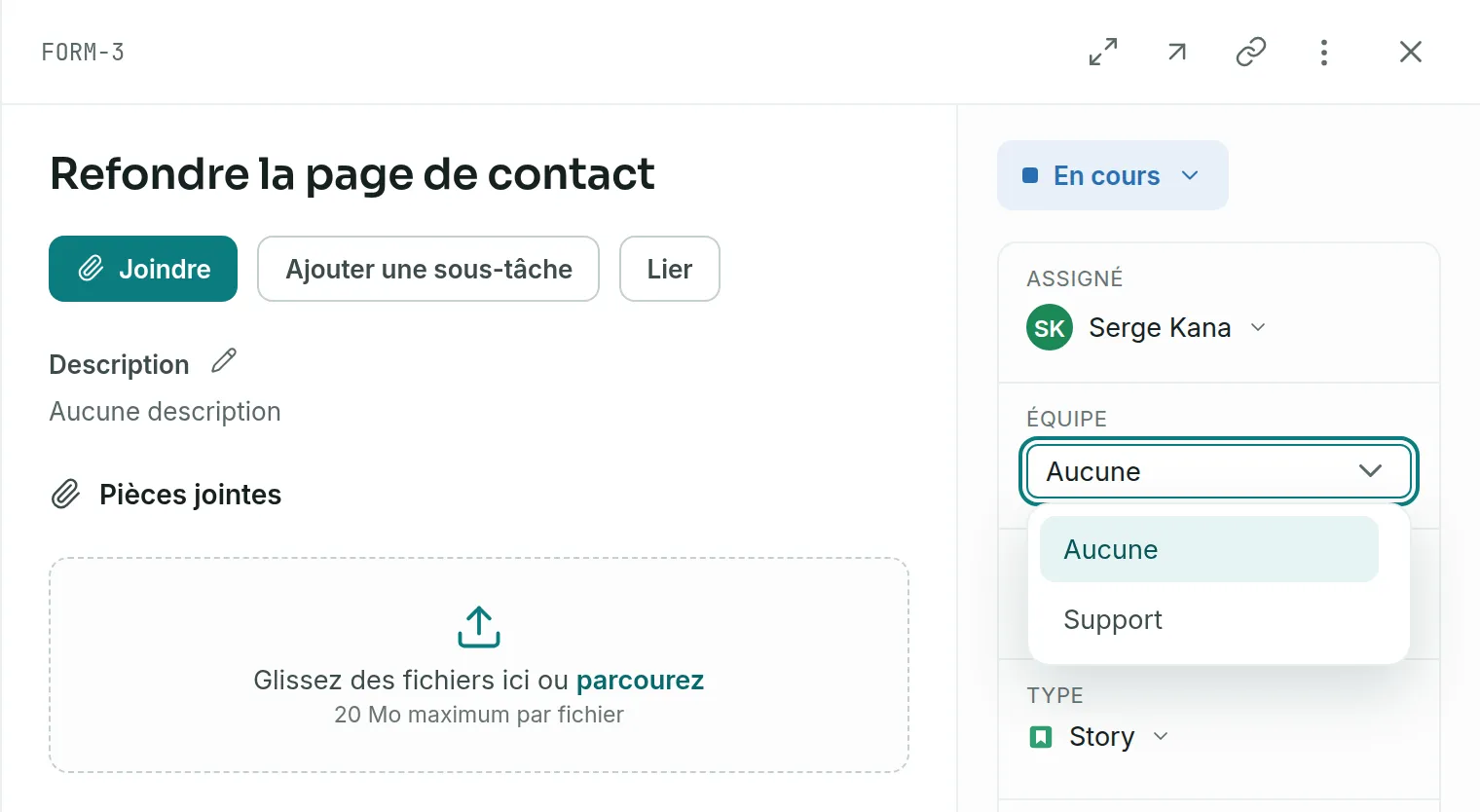
To remove the team, choose None in the same list.
Find a team’s tickets
Link to the “Find a team’s tickets” section- On the project’s board or backlog, click Filter.
- Under Fields, choose Team.
- Tick one or more teams. No team keeps the tickets that have none.
- Close the filter panel. The board now shows only the tickets kept, and the Filter button shows the number of active filters.
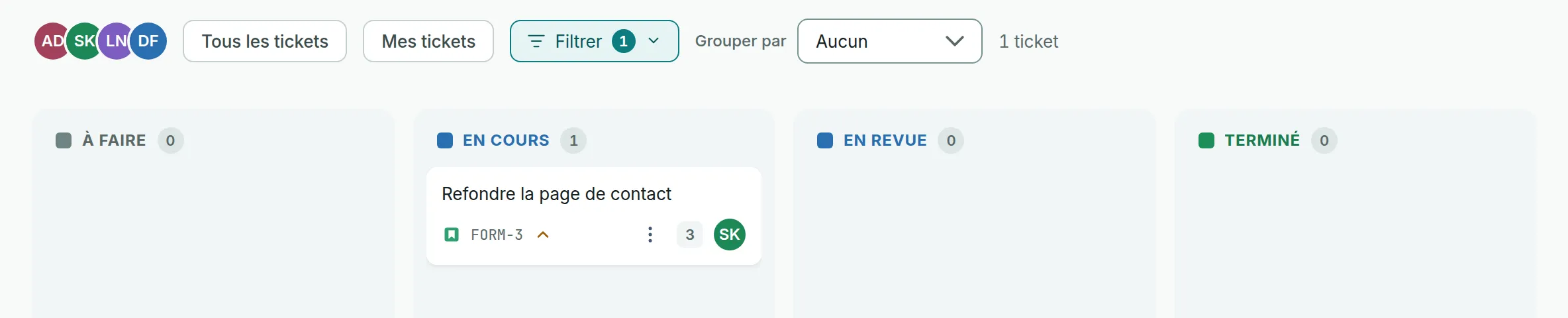
The filter is kept in the page address. You can copy it to share the same view.
If you get stuck
Link to the “If you get stuck” section| What you see | What to do |
|---|---|
| The Team field’s value does not open when clicked. | You are a Viewer in this project, or the project is archived. Ask a project Admin for the Member role. |
| The Team field only offers None. | The project’s site has no team yet. Create one in Teams. |
| The team you want is not in the list. | It belongs to a site other than the project’s. A ticket can only carry a team from its project’s site. |
| The field shows Unavailable. | The ticket’s team has been deleted. Choose another team, or None. |
| Team does not appear under Fields in Filter. | The project’s site has no team, so there is nothing to filter. |
| “Your change was not saved.”, followed by the reason for the refusal. | Read the reason. If the team has just been deleted or your role has just changed, reload the ticket and try again. |
Good to know
Link to the “Good to know” section- A ticket carries one team at most.
- You cannot choose the team when creating the ticket. Open the ticket once it is created to choose it.
- Each change of team leaves a line in the ticket’s History tab.
- The team does not appear on the board card, and advanced search does not filter by team.
- Changing a team’s members changes nothing on the tickets that carry it.
Loading search…