How-to
Attach a file
An attachment keeps a screenshot, a specification or an export with the ticket. All file types are accepted, within the size limit shown below the drop zone.
Attach the file
Link to the “Attach the file” section- Open the ticket.
- Below the ticket’s summary, click Attach. The panel scrolls down to the Attachments section.
- Drag the file onto the Drop files here or browse zone. You can also click browse to pick it on your device.
- Wait for the progress bar to finish. The file joins the list, with its size and your name.
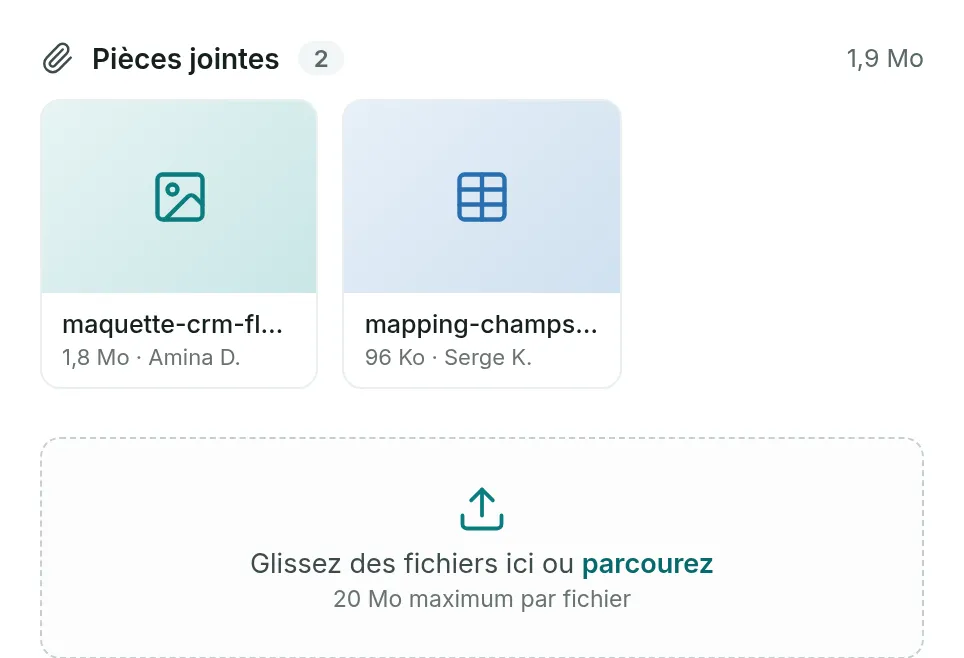
The zone takes one file at a time. To attach several, repeat for each one.
Open or download a file
Link to the “Open or download a file” section- In the Attachments section, click the file’s thumbnail.
- For an image, the preview opens in the “Preview of …” window. Click Download to save it.
Any other file downloads directly when you click its thumbnail.
Remove a file
Link to the “Remove a file” section- In the Attachments section, hover over the file’s thumbnail. A bin icon appears at the top right of the thumbnail.
- Click the bin icon. Its tooltip says Remove followed by the file name.
The file disappears from the list at once, without asking for confirmation. You remove the files you attached. A project Admin can remove every file.
If you get stuck
Link to the “If you get stuck” section| What you see | What to do |
|---|---|
| “This file is over the allowed size.” | The file is larger than the limit written below the zone, for example “20 Mo maximum per file” (Mo stands for MB). Compress it or split it. |
| “This file could not be uploaded. Try again.” | The upload was interrupted. Check your connection, then start again. An empty file, of 0 bytes, is always refused. |
| “You are not allowed to attach a file to this ticket.” | You are a Viewer in this project. Ask a project Admin for the Member role. |
| “This attachment could not be removed.” | Removing or opening the file failed. Reload the ticket: the file may already have been removed. Nothing can be removed from an archived project. |
| “This image could not be displayed. Its read address may have expired, or the file is not the image its type claims. Downloading it still works.” | Click Download, or close the preview and open it again. |
| “This ticket’s attachments could not be loaded.” | Click Retry, in the Attachments section. |
| The Drop files here or browse zone does not appear. | You are a Viewer in this project, or the project is archived. |
| The bin icon does not appear on a file’s thumbnail, even on hover. | Someone else attached this file. Only a project Admin removes other people’s files. |
Good to know
Link to the “Good to know” section- All file types are accepted. Only images open in a preview.
- The size limit applies per file. It is 20 MB by default and may differ on your installation: rely on the one the zone shows.
- The Attachments heading is followed by the number of files and their total size.
- Two files with the same name both stay attached. Neither overwrites the other.
- Pasting or dropping a file into a comment box also attaches it to the ticket. See Comment and mention.
- Attaching or removing a file leaves no trace in the ticket’s history.
Loading search…