How-to
Import a Jira CSV export
The import brings the tickets of a Jira CSV export into a project, in three steps: the file, the column mapping, then the import itself. Nothing is created until you run it.
Drop the file
Link to the “Drop the file” section- In Jira, export the tickets you want to bring over in CSV format, with all the columns.
- In your project, open Project settings in the sidebar.
- Click the Import from Jira tab.
- In the Drop your Jira CSV export area, click Browse files.
- Choose the file. You can also drag it onto the area.
- Check the line that appears under the area, which gives the file name followed by, for example, “· 350 rows · 24 columns detected”. To change the file, click Replace.
- Click Continue.
Check the column mapping
Link to the “Check the column mapping” section- Read the Map the columns table. The obvious matches are already filled in.
- Correct a line if needed. See Map the import columns.
- Click Continue to the preview. The button stays inactive until a column is chosen for Summary.
Run the import
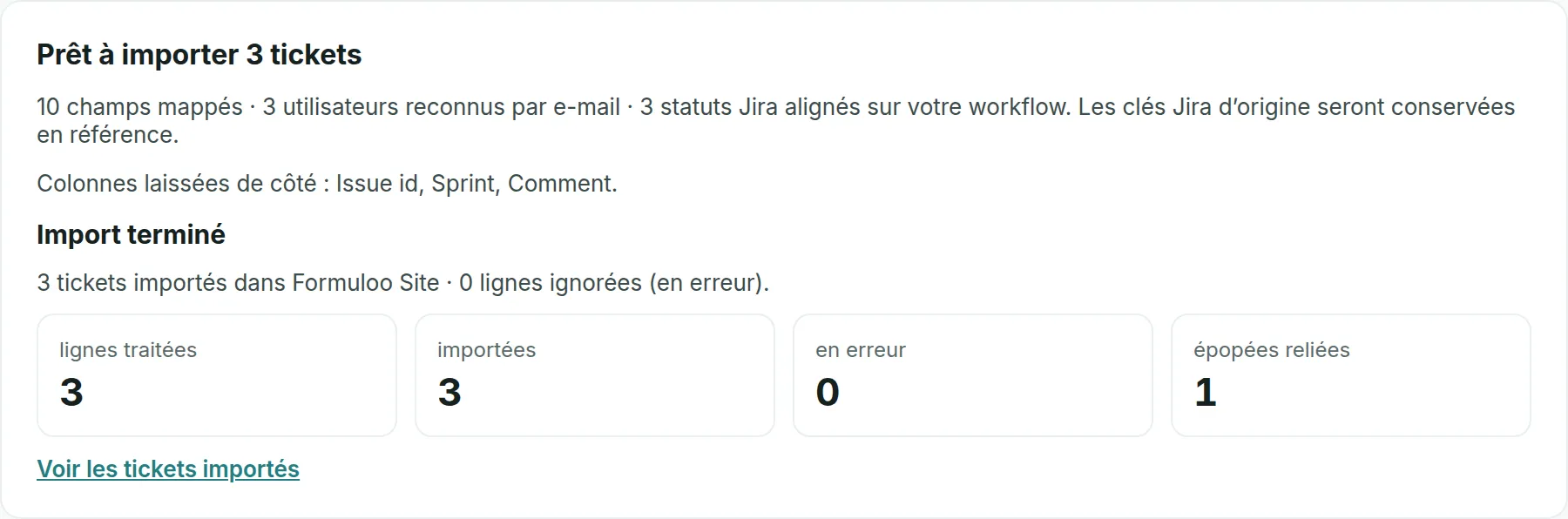
Link to the “Run the import” section- Read the summary. The title gives the number of tickets, for example Ready to import 350 issues. The next sentence counts the fields, users and statuses recognised.
- Read the line “Columns left out: …”. These columns will not be imported.
- Read the errors listed under the summary, if there are any. They concern the first five rows of the file, which serve as a preview.
- Click Run the import.
- Wait for Import in progress… to finish. The counters move on: rows processed, imported, in error and epics linked.
- When Import complete appears, click See the imported issues. The project’s Tickets screen opens.
If you get stuck
Link to the “If you get stuck” section| What you see | What to do |
|---|---|
| Project settings does not appear in the sidebar. | You are not an Admin of the project. Ask an Admin to run the import, or to give you the Admin role. |
| “Only project administrators can import.” | Same cause: only an Admin of the project, or a Super Admin, can import. |
| “The preview was refused (REQUETE_INVALIDE).” | The file has more than 10,000 rows or 2,000,000 characters. Split it into several files, then import them one after the other. |
| “The preview was refused (SAISIE_INVALIDE).” | The file is not a readable CSV, for example because of an unclosed quotation mark. Export it again from Jira. |
| “The preview was refused (ETAT_INCOMPATIBLE).” | The project is archived. Unarchive it, then start again. |
| A line such as “Row 12, column “statut”: Statut non reconnu : « In Progress ».” | Correct the file or the project. The messages come from the server in French, and are explained in Map the import columns. |
| Import abandoned, with “seuil d’abandon atteint : 101 lignes en erreur pour un seuil de 100. Vérifier la correspondance des colonnes avant de relancer.” (abandon threshold reached: 101 rows in error for a threshold of 100; check the column mapping before running it again) | More than 100 rows are in error. A column is probably mapped wrongly. The tickets already imported stay, so correct the mapping, then run the import of the same file again. |
| Accented characters look wrong in the imported tickets. | The file was not in UTF-8. Save it in UTF-8, then run the import again. |
Good to know
Link to the “Good to know” section- Each row is imported whole or not at all. A row in error is skipped, and the others carry on. The screen lists the first twenty rows in error.
- Imported tickets receive a key of the project, such as FORM-120. The Jira key is kept as a reference, so running the import of the same file again updates the tickets already imported instead of creating them a second time.
- A subtask or a ticket of an epic is attached to its parent once all the rows are written, whatever the order of the file.
- Sprints, comments and attachments are not imported.
- The import sends no notification, even for an assigned ticket.
- If you leave the screen during the import, it carries on. When you come back, the screen starts again from the first step, so follow the result in the Tickets screen.
Loading search…