How-to
Filter and group the board
Narrow the board down to the cards you care about, then arrange them in swimlanes by epic, by assignee or by priority.
Keep only your tickets
Link to the “Keep only your tickets” section- In your project, open Board in the sidebar.
- Click My tickets. The board keeps only the tickets assigned to you.
To see another person’s tickets, click their initials badge, to the left of All tickets. Each badge you click adds that person’s tickets. A second click removes them. The row shows six people at most. Choose the others in Filter, in the Assignee field.
Set filters
Link to the “Set filters” section- Click Filter. A panel opens, with the list of Fields on the left.
- Click a field: Text, Epic, Parent, Assignee, Team, Work type or Labels.
- Tick one or more values on the right. For Text, type a word in Filter cards…. The board is filtered straight away.
- Close the panel by clicking outside it, or with Esc.
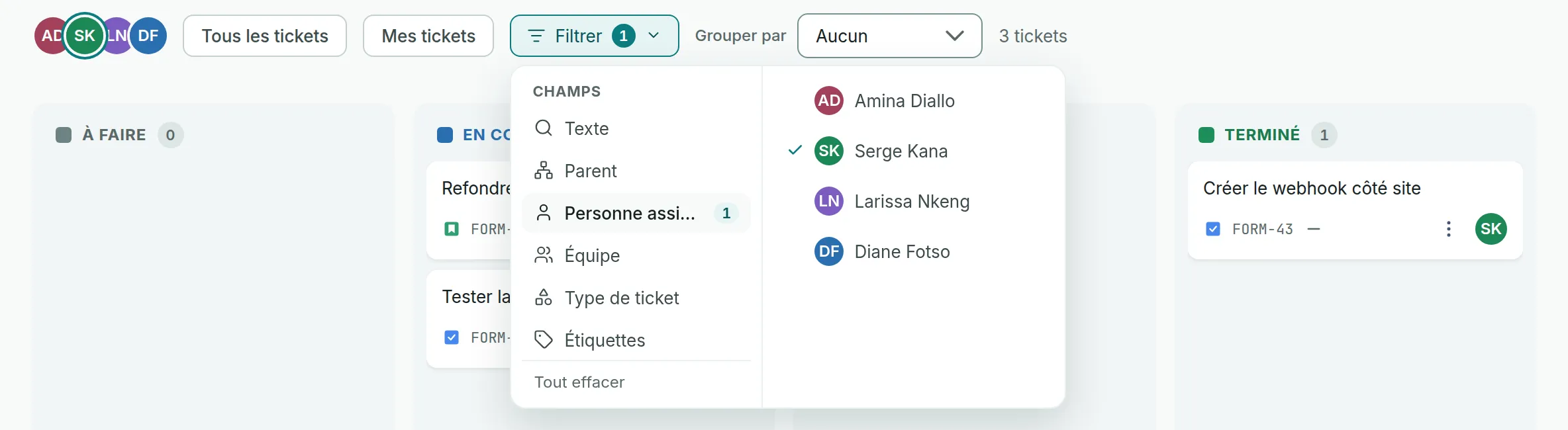
The Filter button then shows the number of fields in use, and a line under the bar gives the number of tickets kept.
Clear the filters
Link to the “Clear the filters” section- Click All tickets. Every criterion is removed at once.
In the Filter panel, Clear all does the same. When no card matches any more, the board also offers Clear the filters.
Group the cards into swimlanes
Link to the “Group the cards into swimlanes” section- In Group by, choose Epic, Assignee or Priority. The cards are arranged in swimlanes, one per value, with the number of tickets in each.
- Click a swimlane’s name to collapse or expand it. Collapse all and Expand all act on every swimlane.
- To go back to plain columns, choose None in Group by.
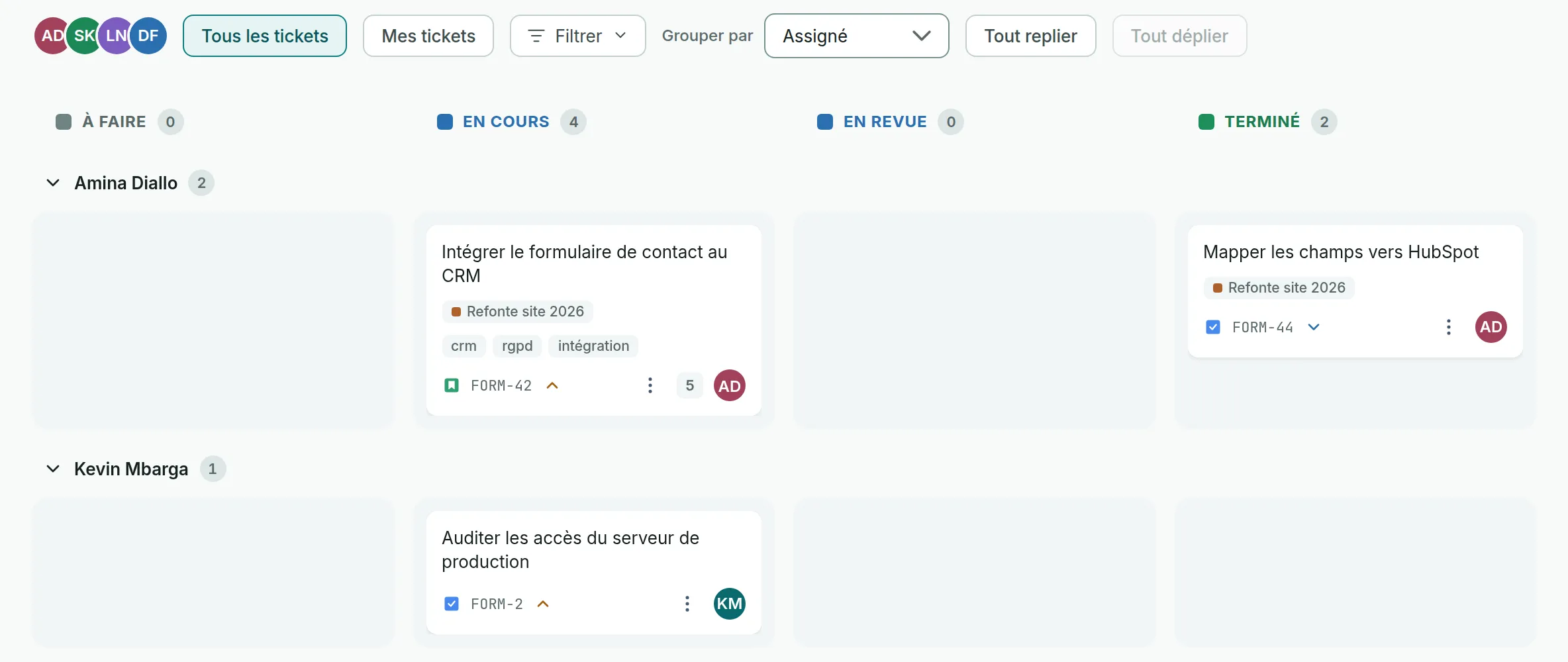
The swimlane of cards with no value comes last: No epic, Unassigned or No priority.
If you get stuck
Link to the “If you get stuck” section| What you see | What to do |
|---|---|
| “No ticket matches the filters.” | Click Clear the filters, then set fewer criteria. |
| A word typed in Text does not find the card. | The text searches whole words in the key and summary of the cards, not in the description. So “integ” does not find “Integrate”. Type the full word. |
| A field is missing from the Filter panel. | A field only appears if it has at least one value to offer in this project, for example a label or a team. |
| My tickets stays inactive, and its tooltip says “You are not a member: no ticket can be assigned to you.” | You are viewing the project as a Super Admin without being a member of it. Click a person’s badge instead. |
| “This project holds more tickets than this board shows. The counts above cover the cards on screen.” | The board shows 200 cards at most. Set a filter to reduce the number of tickets. |
Good to know
Link to the “Good to know” section- Criteria from different fields add up. Several values of the same field combine. Two people ticked show the tickets of one and those of the other. With Labels, a ticket that carries at least one of the ticked labels is kept.
- Epic keeps every ticket under the epic, sub-tasks included. Parent keeps only the direct children of the chosen ticket. These two fields take only one value at a time.
- My tickets replaces the people already chosen with you alone, and keeps the other criteria.
- The text ignores accents and capital letters.
- Filters and grouping are written into the page address. Copy it to share the same filtered board.
- Filters are not kept when you leave the board and come back to it from the sidebar. The Group by choice, however, is remembered for you in this browser.
- The board has no status filter, since its columns are the statuses. The project’s Issues screen offers one.
- Export to CSV, at the top of the board, downloads the tickets that match the filters set.
- Board filters are not saved under a name. To keep a search, use advanced search and its Saved filters.
Loading search…