How-to
Create a team
A team groups people from the same site, for example those who handle support. Any member of the site can create one, then add colleagues to it.
Create the team
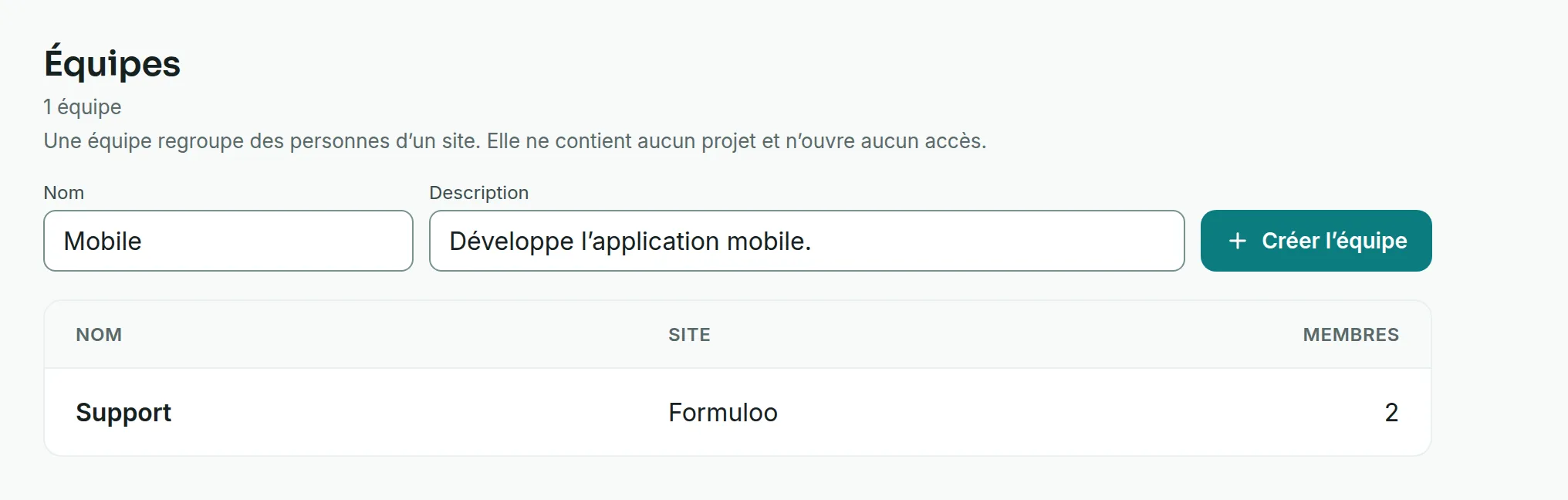
Link to the “Create the team” section- In the sidebar, open Teams. On a phone, Teams is in the bottom bar.
- In Name, enter the team’s name.
- Optional: in Description, say what the team is for.
- If you are a member of several sites, choose the team’s Site. With a single site, the field does not appear and the team is created in your site.
- Click Create team. The team appears in the list with the Member badge: you are its first member.
Add members to it
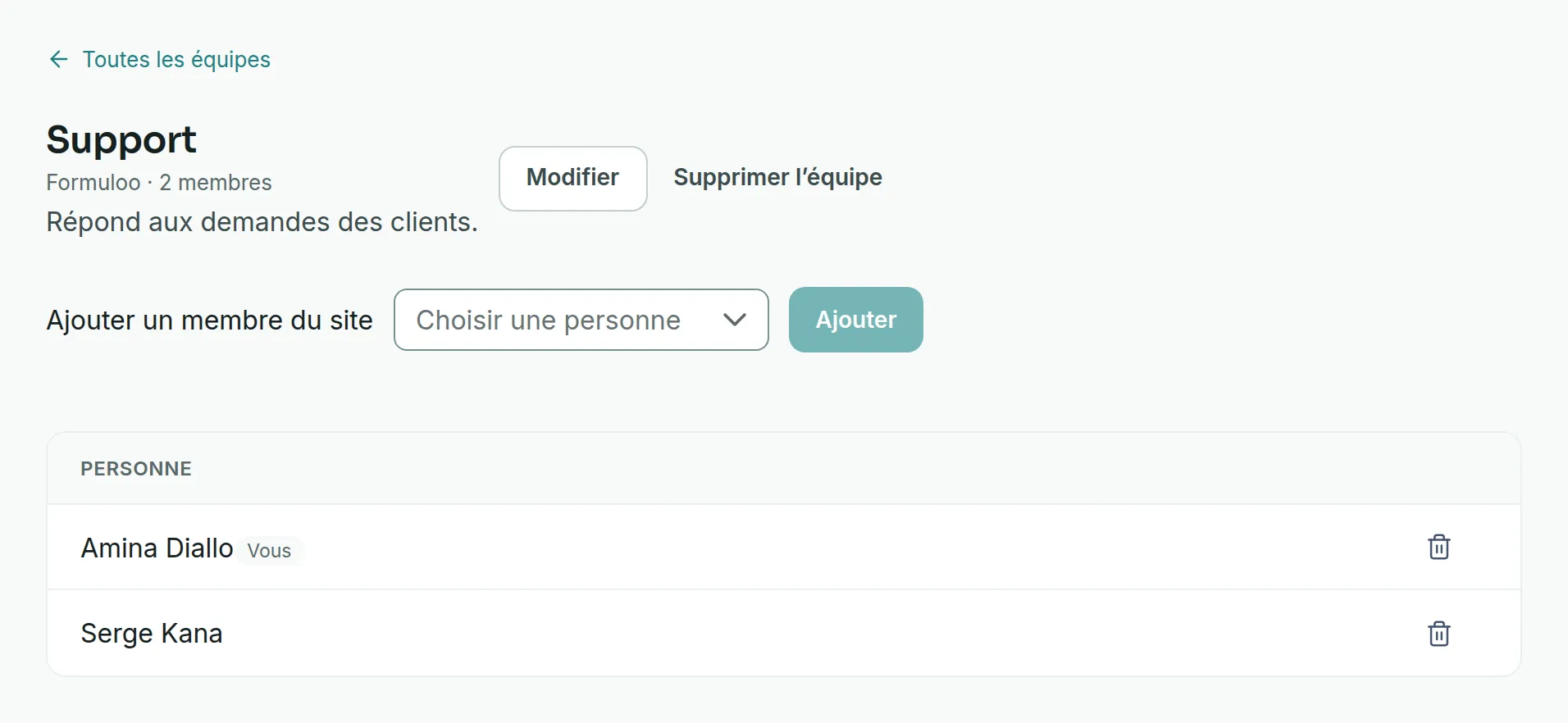
Link to the “Add members to it” section- In the list, click the team’s name.
- Next to Add a member of the site, open the Choose a person list.
- Choose the person. The list only offers members of the team’s site who are not in the team yet.
- Click Add.
Edit the team or remove someone from it
Link to the “Edit the team or remove someone from it” section- On the team’s page, click Edit.
- Change the Name or the Description, then click Save.
- To remove someone, click the bin icon on their row, then Confirm.
Leave or delete the team
Link to the “Leave or delete the team” section- To leave the team, click the bin icon on your own row, marked You. Its tooltip says Leave the team. Then click Confirm.
- To delete the team, click Delete team, then Delete team again in the window that opens.
If you get stuck
Link to the “If you get stuck” section| What you see | What to do |
|---|---|
| “The name is required and cannot exceed 200 characters.” | Enter a name before clicking Create team. |
| “This entry is not accepted.” | You are a member of several sites: choose a Site. Also check that the name is no longer than 200 characters. |
| “Only the team’s members can change it.” | You are no longer part of the team. Ask one of its members to add you. |
| “This team does not exist, or is not in your sites.” | The team has been deleted, or it belongs to a site you are not a member of. |
| The Edit and Delete team buttons do not appear. | You are not a member of this team. You can view it but not change it. |
| Someone is missing from Choose a person. | They are not a member of the team’s site, or they are already in the team. To bring them into the site, see Manage a site’s members. |
Good to know
Link to the “Good to know” section- The Teams page lists the teams of all your sites. The Member badge marks those you belong to.
- A team lives in a single site, and only members of that site can join it.
- Leaving a site means leaving all its teams.
- The last member can leave the team. It is then left without members, and only a Super Admin can still edit or delete it.
- The description holds 500 characters at most.
- Deleting a team does not touch any ticket. Tickets that carried it then show Unavailable in their Team field. See Assign a ticket to a team.
Loading search…